Emergency Alert Screen: Urgent Messages on Every TV
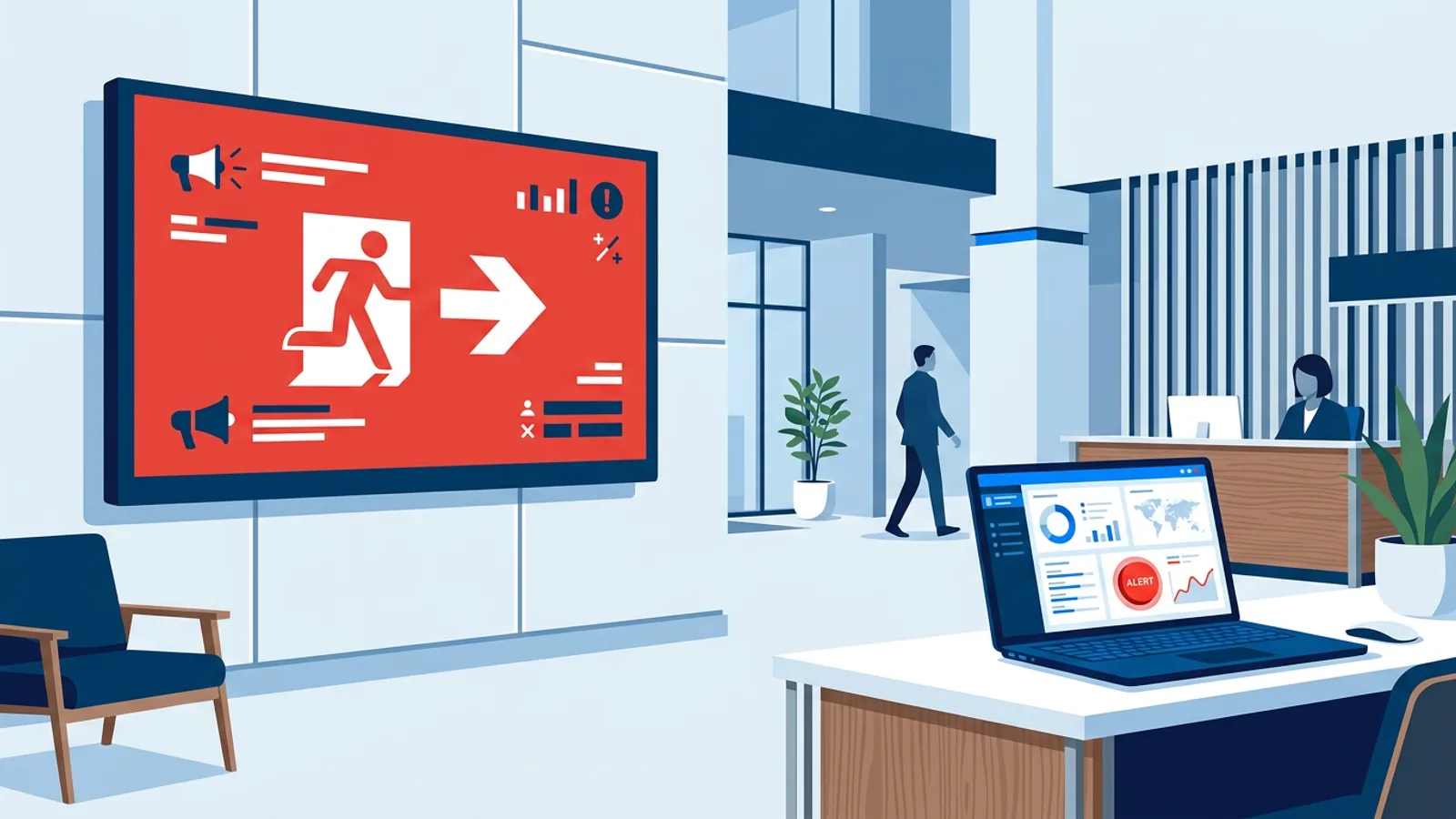
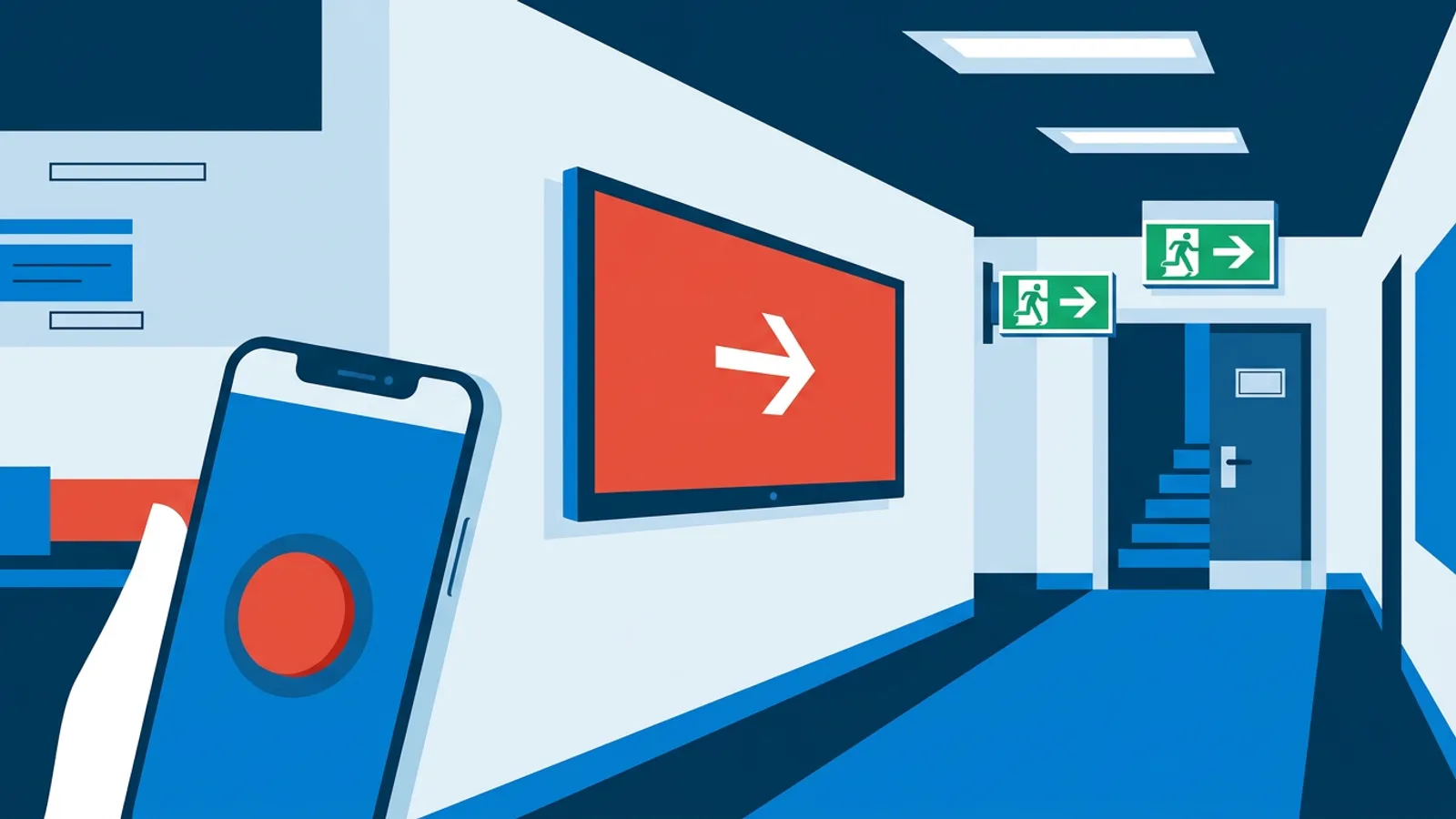
An emergency alert screen is a TV in your building that can drop whatever it is showing and display one urgent message, such as "Evacuate" or "Temporarily closed", the moment someone presses a button. If you already run digital signage, you can usually add this to the TVs you have today without new hardware.
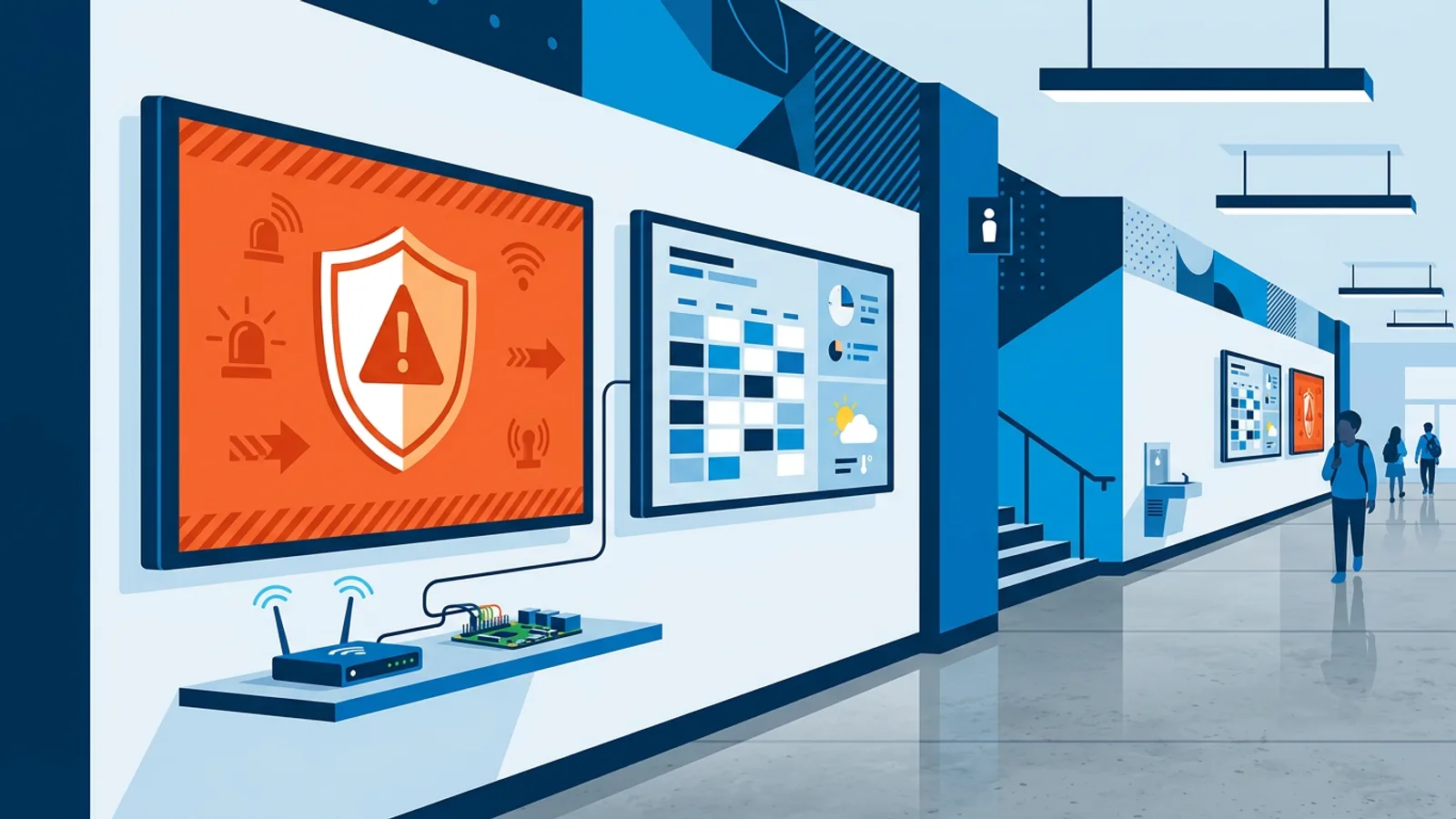
This guide covers alerts on your own business screens in a lobby, office, shop, gym or school hallway. It does not cover the national Emergency Alert System (EAS) or Wireless Emergency Alerts (WEA) that governments push to broadcast TV and phones. You cannot hook into those, and you do not need to. You need a way to reach the screens on your own walls fast. In TVpilot this is one of the features in the integrations catalog, and the rest of this article shows how it works, what it costs and how to set it up so it is ready before the day you need it.
What an emergency alert screen does in practice
A normal signage screen plays a playlist: menu slides, opening hours, a dashboard, a YouTube video. A digital signage emergency alert overrides that playlist with a single full-screen message, then hands the screen back when the alert ends.
In TVpilot the flow looks like this:
- Someone with editor rights or higher presses the red Emergency alert button in the dashboard.
- They pick a ready-made message (Evacuate, Fire, Temporarily closed, Disruption) or type their own with an icon and a colour.
- They choose where it goes: all screens, one location, screens with a certain tag, or hand-picked screens.
- They pick how long it stays: 15 minutes, 1 hour, 4 hours or 24 hours.
- Within seconds the message is full screen on the targeted TVs, over whatever was playing.
There is no playlist to build, nothing to upload and no approval step in between, even if you use the approval workflow for normal content on the Business plan. Owners and admins get an email when an alert starts, so the person in charge knows even if a colleague pressed the button.
The alert ends by itself after the chosen time, and that countdown also runs on a screen that loses its internet connection after receiving the alert. You can extend or stop it at any moment from the dashboard.
How to display an emergency message on a TV that is switched off
If a TV is in standby, the alert reaches a black screen.
If a screen runs on a Raspberry Pi, the Turn TVs on option fixes this. The Pi sends an HDMI-CEC command that switches a TV in standby on, then shows the alert. It is the same mechanism the Pi uses for TVpilot's daily power schedule, so if your Pi already turns the TV on in the morning, alerts will wake it too.
On other players (a smart TV browser, a Fire TV Stick, an Amazon Signage Stick, an iPad) the alert still arrives, but TVpilot cannot wake the TV. Decide per screen which matters more:
- If the screen sits in a corridor, stairwell or exit area that matters during an evacuation, use a Raspberry Pi so it can wake the TV, or keep the TV on during opening hours.
- If the screen is a menu board or a window display that is on whenever you are open anyway, any player is fine.
HDMI-CEC is not equally reliable on every TV brand. Some TVs ship with CEC switched off under a brand name like Anynet+, Bravia Sync or SimpLink. Test it on each TV, and if one refuses, work through the HDMI-CEC troubleshooting guide before you rely on it.
A second, quieter failure is the TV input. If someone switched the TV to another HDMI port or to broadcast TV, no player can show an alert on it. Label the remote, or hide it.
Choosing the right message, target and duration
The ready-made messages cover the common cases. Here is a practical way to use them.
| Message | Typical use | Sensible duration |
|---|---|---|
| Evacuate | Building must be cleared, any cause | 1 hour, then stop by hand when the all-clear comes |
| Fire | Fire alarm confirmed, people must leave | 1 hour |
| Temporarily closed | Shop or desk closed for a short time (staff shortage, power issue, incident) | 15 minutes or 1 hour, extend if needed |
| Disruption | Lifts down, entrance closed, systems offline, delays | 4 hours or 24 hours |
For anything else, write a custom message. Keep it to one instruction and one place: "Use the rear exit, Gate B" beats a paragraph about what happened. Pick a colour that differs from your normal branding so nobody mistakes the alert for a promo slide.
Decide targeting before an incident, not during one:
- If the message applies to the whole company (evacuate the building, IT outage), send it to all screens.
- If it applies to one branch (the Utrecht shop is closed), send it to that location.
- If it applies to a zone inside a building (second floor only, the gym floor but not the café), use tags. Tag screens now, for example
floor-2,entrance,cafe, so the right group is one click away later.
For durations, pick the shortest one that covers the situation and extend if it drags on. A "Disruption" alert that stays up for 24 hours after the lift was fixed teaches people to ignore the screen.
What it costs: a worked example
Emergency alert is a Premium feature. It is included in Pro (€29/month) and Business (€99/month), and available on Starter through the Premium add-on (€9/month). It is not on the Free plan. Prices exclude VAT.
Say you run a physiotherapy practice with six screens in one building: a waiting room TV, a reception screen and four treatment-floor screens.
- Starter: €5/month includes 3 screens. Three extra screens at €2 each add €6. The Premium add-on adds €9. Total: €20/month.
- Pro: €29/month includes 10 screens and Premium, plus up to 3 users and 3 locations.
For one building and one user, Starter with the add-on is cheaper. Now say you have two practices with five screens each. Starter allows only 1 location, so per-location targeting is off the table and you would need Pro anyway. At 10 screens on one site, Starter comes to €5 + €14 + €9 = €28/month against €29 for Pro, so Pro is the better deal because you also get more users, locations and storage.
A simple rule: one site, one person managing screens, fewer than about eight screens, go Starter plus Premium. More sites, more people who need the button, or close to ten screens, go Pro. Choose Business if you need more than 3 users or locations, for example a school group or a franchise.
A cheaper route if you are on Free or Starter
If you do not want Premium, there is an honest workaround. Build a one-slide playlist in the Designer with your alert text, and when needed use "Show now" to push that playlist to chosen screens for 30 minutes, 1 hour, 2 hours, until a set time or indefinitely. The screens return to their planning afterwards.
It works, with tradeoffs. You have to prepare a playlist for every message in advance, it is one more click path under stress, there is no Turn TVs on option, and owners do not get an email. For a café with one or two TVs where "Temporarily closed" is the only realistic message, that is fine. For an office, school or multi-floor building, the dedicated button is worth the add-on.
Setup checklist: get it ready this week
Work through this once and your alert setup is done.
- List every screen and where it hangs. Mark which ones matter during an evacuation (exits, stairs, entrances).
- Check the player on those screens. Prefer a Raspberry Pi where waking a TV from standby matters.
- Enable HDMI-CEC on each TV and confirm the Pi can switch it on and off.
- Tag screens by zone (floor, area, building) and confirm locations are set if you have more than one site.
- Upgrade to Pro or Business, or add Premium on Starter.
- Decide who can press the button. Give editor rights to the people on site who would act in an emergency, such as reception, shift leads and the facility manager, not only the owner.
- Write your custom messages now: exit routes, assembly point, the phone number to call.
- Run a test outside opening hours on one screen, then on all screens, with Turn TVs on enabled and the TVs in standby. Time how long it takes from button to screen.
- Stop the test by hand and check that every screen returned to its normal content.
- Tell staff where the button is and put it in your emergency procedure.
For a deeper walk-through of evacuation content and exit signage, see the evacuation signage setup checklist. The feature itself is documented on the emergency alerts page.
What an emergency alert screen does not replace
Screens help people know what to do. They are not a certified fire alarm, a public address system or a link to emergency services. Pressing the button does not call the fire brigade, and screens in a room without power or internet at the moment you press will not receive the alert. Keep your legally required alarms, signage and procedures, and treat the screens as an extra channel on top of them. If you want the broader case for using signage as an alert channel next to those systems, read emergency alert digital signage. This guide sticks to setup, cost and testing.
Also keep an eye on screen health. A TV that has been offline for a week will miss the alert too, and TVpilot's optional offline email alerts are a cheap way to catch that before it matters.
When TVpilot is the right fit, and when it is not
TVpilot fits if you run a handful to a hundred screens in shops, offices, gyms, practices or schools and want alerts in the same dashboard as your everyday content. It runs on Raspberry Pi, Fire TV Stick, Amazon Signage Stick and any device with a browser, and you pay per plan rather than per screen licence.
It is not the right tool if you need a certified life-safety system, integration with a building fire panel, or a self-hosted setup on your own servers. TVpilot is hosted software, so you need a dedicated safety system for those requirements.
Get your alert button ready
You can create a TVpilot account for free, connect your first screen, and upgrade to Pro or add Premium on Starter when you are ready to switch on the red button. Then tag your screens, write your custom messages and run one test this week with the TVs in standby.
Frequently asked questions
What is an emergency alert screen?
It is a TV or display in your own building that can interrupt its normal content and show one urgent message full screen, such as Evacuate, Fire, Temporarily closed or a custom instruction. In TVpilot an editor presses the red Emergency alert button in the dashboard and the message appears on the chosen screens within seconds.
Can I connect my business screens to the national Emergency Alert System?
No. The national EAS and Wireless Emergency Alerts are government systems for broadcast TV and phones. A business emergency alert screen is a separate tool that lets you push your own messages to the screens you manage, for example in a lobby, shop, office or school.
Will the alert show if the TV is in standby?
On a Raspberry Pi player, yes, if you enable Turn TVs on: the Pi uses HDMI-CEC to switch the TV on and then shows the alert, provided CEC is enabled on the TV. On other players such as a smart TV browser or Fire TV Stick the alert arrives, but the TV has to be on already to show it.
Which TVpilot plans include emergency alerts?
Emergency alert is a Premium feature. It is included in Pro (€29/month) and Business (€99/month) and can be added to Starter with the Premium add-on for €9/month, prices excluding VAT. It is not available on the Free plan, where the Show now feature with a prepared alert playlist is the closest workaround.