Digital Signage Server: Cloud, On-Premise or None?
Most small businesses and offices do not need their own digital signage server: a hosted (SaaS) system runs the server for you, and the players keep showing downloaded content when the internet drops. You only need an on-premise server when your screens cannot reach the internet at all, or when a rule says the content may never leave the building.
Which model fits depends on who will patch the server at 23:00 when a security update lands, and what a black screen in your lobby costs you. This guide compares the three models (a server in the building, a self-hosted server in the cloud, and hosted software) on hardware, upkeep, updates and security, with a worked example and the situations where on-premise is the right call.
If you are still choosing hardware and software for your screens, start with the overview of how digital signage with TVpilot works, then come back here for the server question.
What a digital signage server actually does
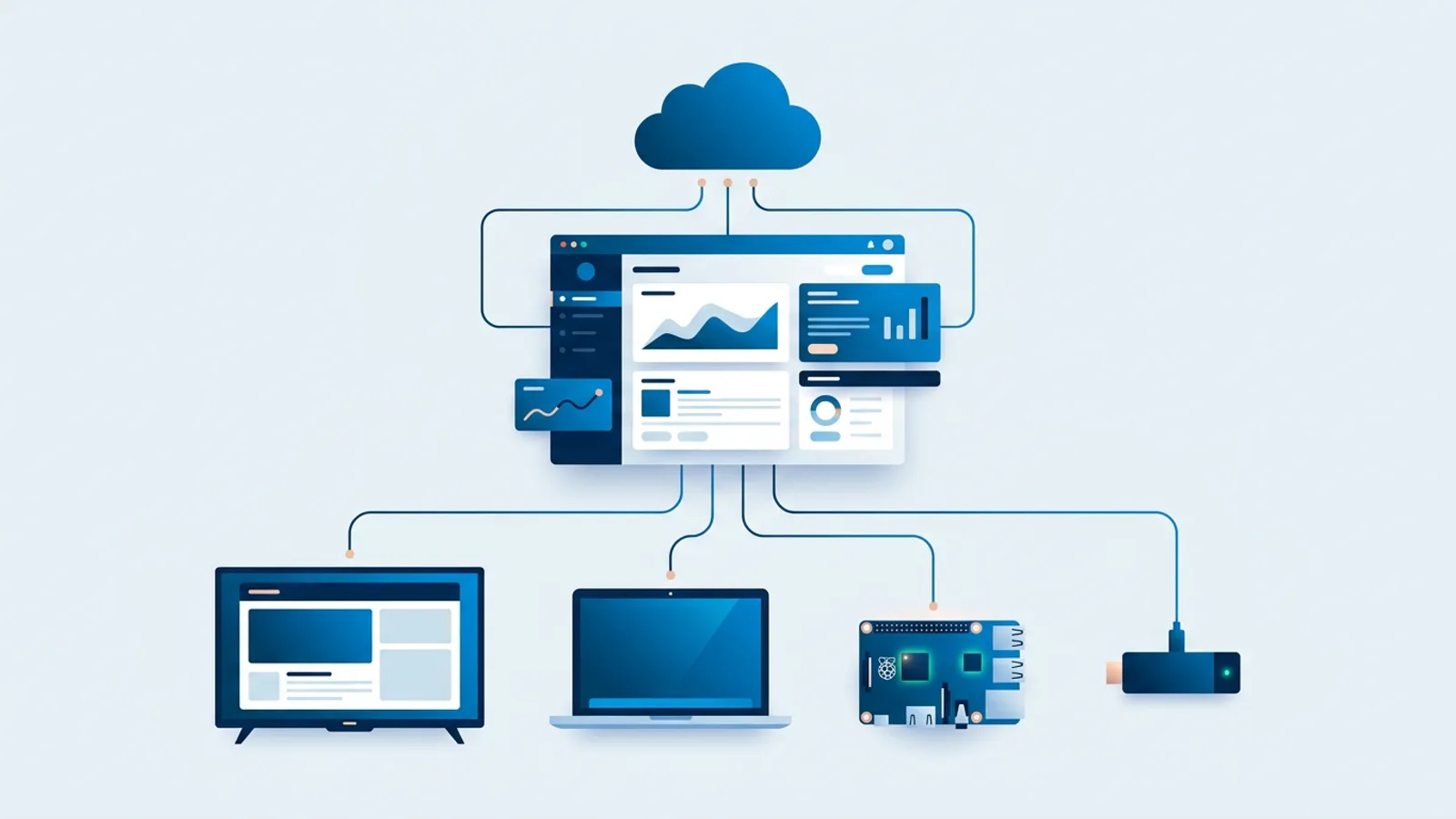
Every networked signage setup has two halves. The player sits behind the TV (a Raspberry Pi, a stick, a smart TV browser) and shows content. The server is the part you never see: it stores the media library, holds the playlists and schedules, hands each player its content, and receives status reports back.
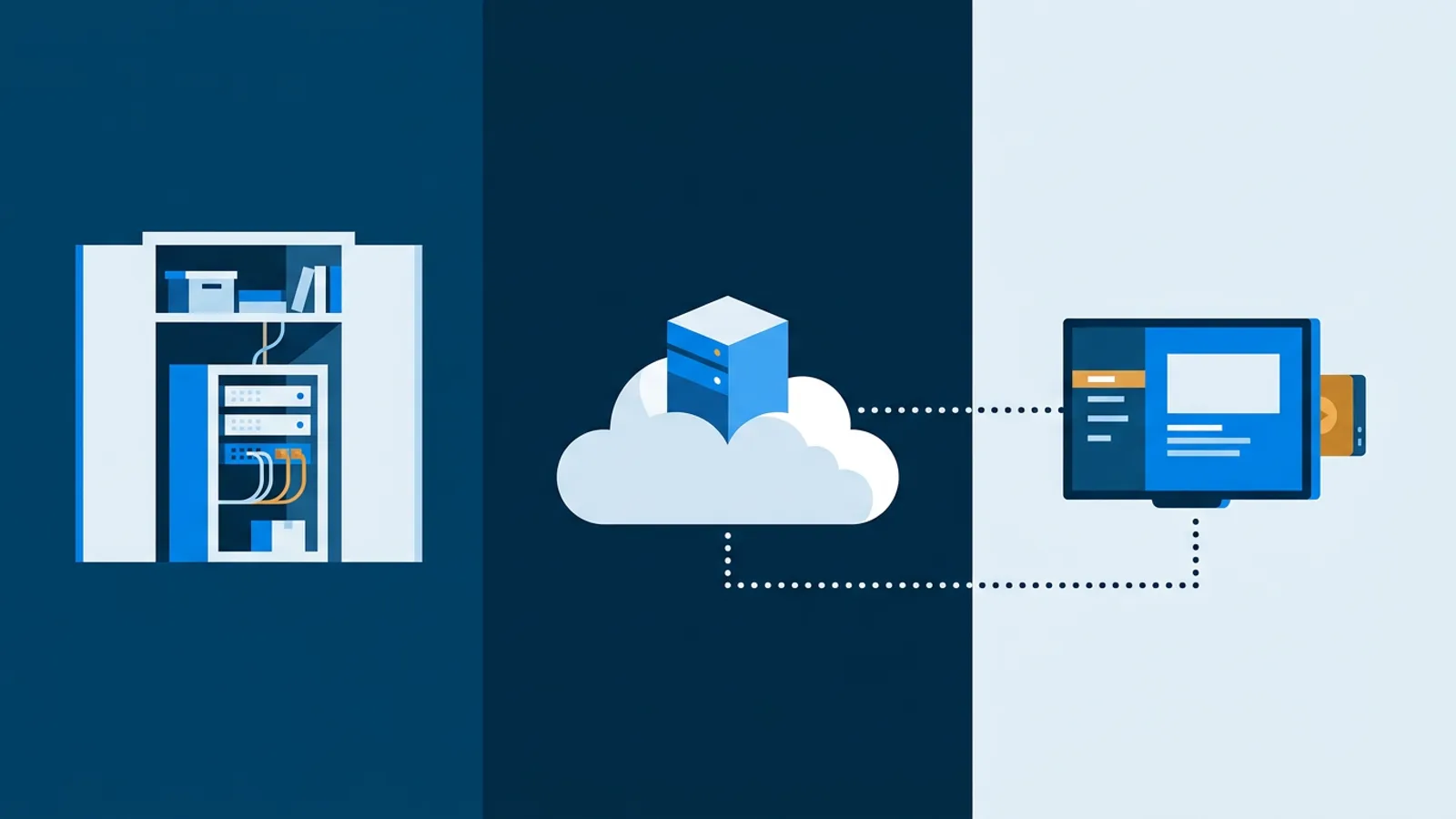
Every setup has a server; what differs is who runs it, where it lives and who gets the call when it stops. There are three answers:
- A server in your building (on-premise): a machine in your rack or under a desk, on your local network.
- A self-hosted cloud server: open-source or licensed signage software you install on a rented virtual server (VPS) or your own cloud account.
- Hosted SaaS: the vendor runs the server; you log into a web dashboard and pay a subscription.
There is also a fourth route with no server at all: a USB stick in the TV playing a looping slideshow. It costs nothing and works for one screen that changes twice a year. The moment you want to change content without walking to the TV, schedule a lunch menu, or know whether a screen is on, you are back to one of the three models above.
The three models compared
A server in the building
You buy or repurpose a machine, install signage server software, and point your players at it over the local network. Content never leaves the premises, and screens keep updating even when the internet line is down, because everything travels over your LAN.
The hidden costs are a UPS, tested backups, updates and a disk-failure plan. The UPS stops a power blip from corrupting the database, and a backup routine only counts if someone restores from it now and then. Remote editing from home or a second branch means opening the server to the outside, usually through a VPN, which is one more thing to maintain.
A self-hosted cloud server
This is the usual meaning of self hosted digital signage: you rent a small VPS and install the signage software there. Your players reach it over the internet, so multiple locations work without a VPN, and you avoid buying hardware.
You still own every operational task. You install security patches, renew TLS certificates, configure the firewall, run backups, and upgrade the signage software itself (often with database migrations that can break). The server is on the public internet, so a missed patch is an exposed patch.
Hosted SaaS
The vendor runs the servers, updates the software, handles backups and security, and you pay per month or year. You lose control over where the server lives and what features ship when. You gain hours back and avoid running a public-facing server. For a background explainer on how cloud signage behaves day to day, see our guide to cloud digital signage.
Cloud vs on-premise digital signage: what each really costs
The licence or subscription is the visible number. The hidden one is staff time. This table lists who carries each cost per model.
| Cost item | Server in the building | Self-hosted cloud server | Hosted SaaS |
|---|---|---|---|
| Server hardware | You buy it, plus UPS | None (VPS rent instead) | None |
| Monthly running cost | Power, space | VPS rent | Subscription |
| OS and security patches | You | You | Vendor |
| Signage software upgrades | You | You | Vendor |
| Backups and restore tests | You | You | Vendor |
| TLS certificates, firewall | You (VPN for remote access) | You | Vendor |
| Remote access for editors | VPN setup needed | Built in | Built in |
| Works when internet is down | Yes, over LAN | Players play cached content | Players play cached content |
| Who fixes the server | You | You | Vendor |
The hardware column is the cheapest line in every model. The patching, upgrade and backup rows are where self-hosting costs real money, because each one needs a person who knows how to do it and remembers to.
A worked example with real numbers
Say you manage an office with six screens: two in reception, one in the canteen, three in team areas showing KPI boards and the meeting room schedule.
Hosted (TVpilot Starter). Starter costs €5 a month and includes 3 screens; extra screens are €2 a month each. Six screens is €5 + 3 × €2 = €11 a month, or €49 + 3 × €20 = €109 a year on yearly billing (prices excl. VAT). Updates, backups and server security are included.
Self-hosted on a VPS. The software may be free, and a small VPS is cheap. Now add time. Assume, as an example, one hour a month for OS patches and checking backups, plus a four-hour job twice a year for a major signage software upgrade. That is 20 hours a year. At an internal cost of €50 an hour (use your own rate), the time alone is €1,000 a year, before the VPS rent and before the first unplanned outage.
Server in the building. Same 20 hours, plus the hardware, a UPS, and a VPN if the marketing colleague wants to update the canteen screen from home.
The numbers shift if you already run a server fleet with an IT team that patches everything on a schedule anyway. Then one more Linux box adds little, and self-hosting can make sense. If nobody on staff patches servers today, self-hosting means hiring that job in, or skipping it until something goes wrong.
What happens when the internet or the server goes down
This is the question behind most requests for a local server, so test the claim instead of assuming.
In a well-built hosted system the player downloads its content and schedule ahead of time. When the connection drops, it keeps playing what it has. In TVpilot, players keep following the calendar schedule during internet outages, and a scheduled playlist change is downloaded in advance so the screen switches at the exact moment even if it is offline at that time. A backup playlist per screen plays if the assigned content is empty or unavailable, so the screen does not go black. What you cannot do during an outage is push new content: edits reach the screen once it is back online, and the Raspberry Pi player recovers automatically after the outage.
Self-hosted systems have a failure mode hosted users never see. If your own server is down (a full disk, an expired certificate, a failed upgrade), every screen loses its source of updates at once, and the fix depends on whoever has the login.
When on-premise is really needed
Use these decision rules:
- If the screen network has no outbound internet at all (air-gapped industrial sites, some secure government or defence buildings), choose a server in the building. A hosted system cannot reach players it cannot talk to.
- If a contract or regulation says content must never leave your premises, choose on-premise. Check whether the rule is a written requirement or a preference before you buy hardware.
- If your IT team already runs and patches servers on a schedule and wants full control of the stack, a self-hosted cloud server is reasonable.
- If your worry is outages, hosted with offline playback covers it. A local server adds a new single point of failure inside your building.
- If your worry is security, ask what the screens need to reach. A separate network segment or VLAN for the players often answers IT's concerns. Our Raspberry Pi signage network security guide covers that setup.
- For everyone else (a café with one TV, a shop with three screens, an office with ten), hosted is cheaper and less work.
Self hosted digital signage: the failure modes to plan for
If you do go self-hosted, these are the problems that show up in the first year:
- Expired TLS certificates. Automatic renewal fails quietly, then every player stops syncing on the same day. Monitor expiry dates.
- Upgrades that break players. Server and player versions drift apart. Read release notes and test on one screen before the fleet.
- Backups nobody restored. A backup you have never restored is a guess. Do one test restore per quarter.
- The one person who knows. Write down the logins, the server address and the restore steps so the setup survives staff turnover.
- Disk full from video. Large uploads fill a small VPS fast. Set a size alert.
Put these checks in a schedule next to the screen checks in our digital signage maintenance checklist.
Where TVpilot fits, and where it does not
TVpilot is hosted SaaS. It is not open source and it cannot be self-hosted, so if you need software on your own server, TVpilot is the wrong choice and you should look at self-hostable products.
TVpilot fits if you want to run no server yourself. You manage screens from a web dashboard, players run on a Raspberry Pi (one-command installer), the Amazon Signage Stick, a Fire TV Stick or any device with a modern browser, and player updates run automatically with a daily check at 03:00. Screen monitoring shows online status, screenshots and device logs, with optional email alerts when a screen goes offline. The Free plan covers 1 screen forever with no credit card, which is enough to test the outage behaviour on your own network before you decide.
Conclusion
Start with the question of whether your screens can reach the internet. If they cannot, or a written rule keeps content on site, run a server in the building and budget for the patching. If they can, a hosted system gives you offline playback without a server to maintain. To check it on your own network, put one Raspberry Pi or Amazon Signage Stick screen on the Free plan, let the playlist play through once so every slide is downloaded, then unplug the router for ten minutes and watch what the screen does (a smart TV browser can behave differently, so use a dedicated player for this test): create a free TVpilot account.
Frequently asked questions
Do I need a server for digital signage?
Every networked signage setup has a server, but you do not have to run it yourself. With hosted (SaaS) signage the vendor runs the server and you manage screens from a web dashboard. You only need your own server if your screens have no internet access or a rule requires content to stay on your premises.
Can TVpilot be self-hosted or installed on a local server?
No. TVpilot is hosted SaaS, not open source and not self-hostable. If you need signage software running on your own server, choose a self-hostable product instead. TVpilot players do keep playing their downloaded content and following the schedule during internet outages.
What happens to hosted digital signage when the internet goes down?
In a well-built hosted system the player has already downloaded its content and schedule, so it keeps playing. In TVpilot, screens keep following the calendar schedule offline and a backup playlist prevents a black screen. New edits reach the screen once the connection returns.
Is self-hosted digital signage cheaper than SaaS?
The software and a small VPS can be cheap, but you take on OS patches, software upgrades, TLS certificates, backups and restore tests. If nobody on staff already patches servers, that time usually costs more than a subscription. If your IT team already runs a patched server fleet, self-hosting adds less overhead.