Digital Signage for Restaurants: Menu, Specials, Reviews
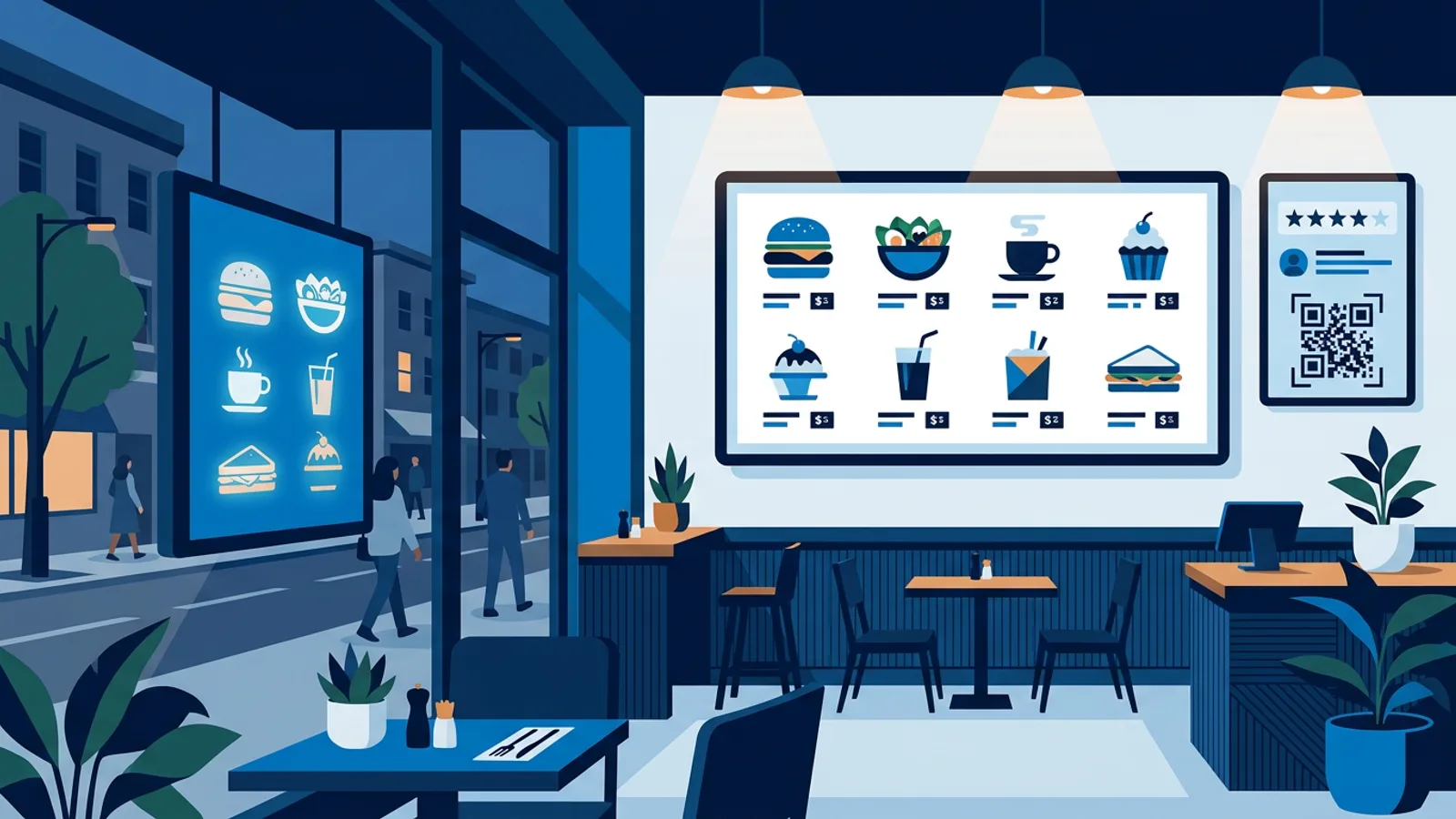
Digital signage for restaurants works best when one screen does three jobs on a timer: the menu for the current service, today's specials that take themselves off screen when they are over, and a short rotation of guest reviews and a Wi-Fi QR code. You set it up once, schedule lunch and dinner, and the screen switches at the right time without anyone touching a remote.
This guide walks through that setup for a typical restaurant with two screens, one in the dining room and one in the window. If you only need the menu itself, the digital menu board guide covers layouts and hardware in more detail. Here the focus is on getting menu, specials and reviews to share a screen without it turning into clutter.
The short version: use calendar scheduling for lunch versus dinner, per-slide scheduling with an expiry date for specials, and keep reviews and the QR code to one slide each per loop.
What a restaurant TV screen should show, and when
Guests look at a restaurant screen in three situations, and each one wants different content.
| Moment | Who is looking | What to show |
|---|---|---|
| Walking past the window | People deciding where to eat | Tonight's menu with prices, your rating, opening hours |
| Waiting or ordering | Guests in line or at the host stand | The current menu, today's specials |
| Seated at the table | Guests with a few minutes to spare | Specials, desserts, reviews, the Wi-Fi QR |
A useful decision rule: if guests order at a counter, the menu should get most of the screen time on the inside screen, because that is what they are reading while they decide. If you run table service, guests already have a printed menu in their hands, so the inside screen earns more by pushing specials, desserts and drinks.
Set up the restaurant digital menu with lunch and dinner dayparting
TVpilot has two scheduling tools, and picking the right one saves you a lot of fiddling.
Calendar scheduling decides which playlist plays on a screen. You add weekly repeating time slots, for example a lunch playlist on Tuesday to Saturday from 11:30 to 14:30 and a dinner playlist from 17:30 to 22:00. When nothing is planned, the screen falls back to its default playlist, so between services it can show opening hours or a general welcome slide. One-off items beat weekly ones, which means a Valentine's menu planned for 14 February replaces the normal dinner slot that evening and the regular schedule returns the next day. Players keep following the schedule during internet outages.
Per-slide scheduling works inside a playlist. Each slide can be limited to chosen weekdays, chosen times, or both.
The rule for choosing between them:
- If your lunch and dinner menus are substantially different (different dishes, different prices), make two playlists and switch them with the calendar.
- If only two or three dishes change between services, keep one playlist and give those slides a time window.
Two playlists sound like more work, but they are easier to check. You open the lunch playlist and see exactly what guests will see at noon.
Making the menu slides
You have three routes. The built-in Designer has text, photos, shapes, QR codes, 15 fonts plus your own uploaded fonts, layout templates and a logo anchor, so you can build a menu in your house style. AI Studio generates a designed menu or promo screen from a short brief if you would rather not start from a blank canvas. If you want someone else to do it, the Content bundle is 99 euro once (excl. VAT): TVpilot's designers make 5 designs in your branding, delivered in your Designer within 5 working days with one correction round.
Whatever route you take, test readability from the spot where guests actually stand. If someone in line cannot read a price from there, split the slide in two (starters and mains, for example) rather than shrinking the text.
Daily specials that expire on their own
The most common failure on restaurant screens is a special that stays up after it is gone: Tuesday's soup still showing on Thursday, or the spring asparagus dish advertised in July. Guests ask for it, staff apologise, and the screen loses credibility.
Per-slide scheduling fixes this with an optional expiry date. After that date the slide removes itself. Some examples of how to set it:
- Soup of the day: one slide per soup, each limited to its weekday and to lunch hours.
- A seasonal dish: no weekday limit, expiry date set to the last day you plan to serve it.
- A weekend brunch: Saturday and Sunday only, 10:00 to 13:00.
For something that sells out mid-service, pause the individual slide from the dashboard. It stays in the playlist, ready to resume tomorrow. Edits save as a draft and only reach the screens when you press Push to screen, so you can prepare next week's specials on Sunday evening without anything leaking onto the live display.
When to connect the till with the Data API menu
If your sold-out list changes a few times a week, pausing slides by hand is fine. If you run a larger menu and items run out several times per service, typing changes into a dashboard during a rush will not happen.
The Data API (a Premium feature) lets any system that can send a web request, such as a till, kitchen system, or an automation in Zapier, Make or n8n, put live data on screens within seconds. One of its feed shapes is Menu: items with prices and categories, where sold-out items are struck through or hidden. Your till marks an item unavailable and the screen follows. The decision rule: connect it only if your till or a tool you already use can send that request. Building a custom integration just for the screen is rarely worth it for a single restaurant.
Show Google or Tripadvisor reviews between menu slides
A review slide between menu slides gives guests a reason to trust the specials. TVpilot shows reviews in a rotating, grid or summary view.
Which source to use depends on where your guests write:
- Google reviews are included in every plan. For most neighbourhood restaurants this is where the volume is.
- Tripadvisor is a Premium plugin (in Pro and Business, or with the Premium add-on on Starter). Choose it if you are in a tourist area where visitors arrive with Tripadvisor open. Tripadvisor reviews are fetched when the widget is made and refreshed by hand with Refresh reviews, at most once per 24 hours, so plan a weekly refresh.
Keep it to one review slide per loop, shown for 10 to 15 seconds. A full minute of reviews in a dining room feels like an advert.
The guest Wi-Fi QR code
Guests ask for the Wi-Fi password more than almost anything else. The WiFi / QR plugin, included on every plan, puts a QR code on screen that carries your guest network details, so guests join with one scan. It can carry a link instead (your online menu, your review page, your Instagram) and you can add your logo in the middle and use your brand colours.
The code is generated on the screen itself, so it keeps working without internet once loaded. The one thing to remember: when you change the Wi-Fi password, update the plugin the same day, or the screen hands guests a code that fails.
You can also place a QR code inside a Designer slide, for example in the corner of the dessert slide, so it is visible more often without taking a full slot.
The window screen
A screen facing the street has a different job. People walking past give it a few seconds, so show fewer words in bigger type: tonight's menu headline with a price, your rating, and opening hours. Leave the Wi-Fi QR off this screen.
An ordinary TV in a sunny window can be hard to read in daylight, so think about which side of the street gets afternoon sun before you buy. If the window screen runs on a Raspberry Pi, the HDMI-CEC power schedule switches the TV on and to standby on your opening hours, no smart plug needed. The storefront window screen guide goes deeper on placement and brightness.
Worked example: a two-screen bistro
Say you run a 50-seat bistro, open for lunch Tuesday to Saturday 11:30 to 14:30 and dinner 17:30 to 22:00, with one screen in the dining room and one in the window.
Hardware: a Raspberry Pi 4 behind each TV, installed with the one-command installer and a claim code from the dashboard. An Amazon Signage Stick or a smart TV browser would work too.
Plan: Starter at 5 euro per month or 49 euro per year includes 3 screens, 5 calendars and 20 scheduled items. Your calendar needs four weekly items (lunch and dinner for each screen) plus a one-off now and then for events, well within the limit.
The dining room dinner loop could look like this:
- Dinner menu, starters and mains: 15 seconds
- Dinner menu, desserts and drinks: 15 seconds
- Special of the day (weekday-limited, with expiry): 10 seconds
- Google reviews, rotating view: 12 seconds
- Wi-Fi QR: 10 seconds
That is a 62-second loop, short enough that a seated guest sees the special at least once before ordering.
If you also want Tripadvisor reviews, add the Premium add-on at 9 euro per month (90 euro per year). Yearly, that brings the total to 139 euro excl. VAT for both screens. If you later want the till to mark sold-out dishes through the Data API, the same add-on covers it.
When TVpilot is the right fit, and when it is not
TVpilot fits if your menu changes by daypart, you run specials that come and go, and you want to change the screen from a web dashboard instead of a USB stick. The Free plan covers one screen with standard plugins and AI Studio, so a single-screen restaurant can run the whole setup above (minus Tripadvisor) at no cost.
It is a weaker fit in a few cases. If your menu never changes and you have one screen, a printed board or a single image on a USB stick does the job. TVpilot is hosted software, not self-hostable, and players need an internet connection to pick up content changes, so a venue with no reliable connection at all should look elsewhere. And if you run many branches with shared prices, look at the chain setup rather than managing each restaurant by hand.
Get your first restaurant screen running
Start with the dining room screen: build one lunch and one dinner playlist, schedule them in the calendar, add a special with an expiry date and a Wi-Fi QR slide, and watch a full service. Once the loop feels right, copy the idea to the window. You can create a free account with no credit card and have the first screen playing today.
Frequently asked questions
Can a restaurant screen switch between lunch and dinner menus automatically?
Yes. In TVpilot you make a lunch playlist and a dinner playlist and add them to the screen's calendar as weekly repeating time slots, for example 11:30 to 14:30 and 17:30 to 22:00. The screen switches at those times on its own and falls back to a default playlist when nothing is planned. Players keep following the schedule during internet outages.
How do I stop old daily specials from staying on the screen?
Give each special slide a schedule and an expiry date. A slide can be limited to chosen weekdays and times, and after its expiry date it takes itself off screen. For an item that sells out during service, pause that slide from the dashboard and resume it the next day.
Can I show Tripadvisor reviews on a restaurant TV?
Yes, with the Tripadvisor plugin, which is Premium: it is included in Pro and Business, or available on Starter with the Premium add-on for 9 euro per month. Reviews are fetched when the widget is made and refreshed by hand at most once per 24 hours. Google reviews are included on every plan, including Free.
What does digital signage cost for a small restaurant?
With TVpilot, one screen is free forever on the Free plan. Two or three screens fit the Starter plan at 5 euro per month or 49 euro per year, excl. VAT. Adding the Premium add-on for Tripadvisor reviews or the Data API costs 9 euro per month or 90 euro per year. You also need a TV and a player such as a Raspberry Pi, an Amazon Signage Stick or a smart TV browser.