Warehouse Dashboard TV: Live Picklists from Picqer
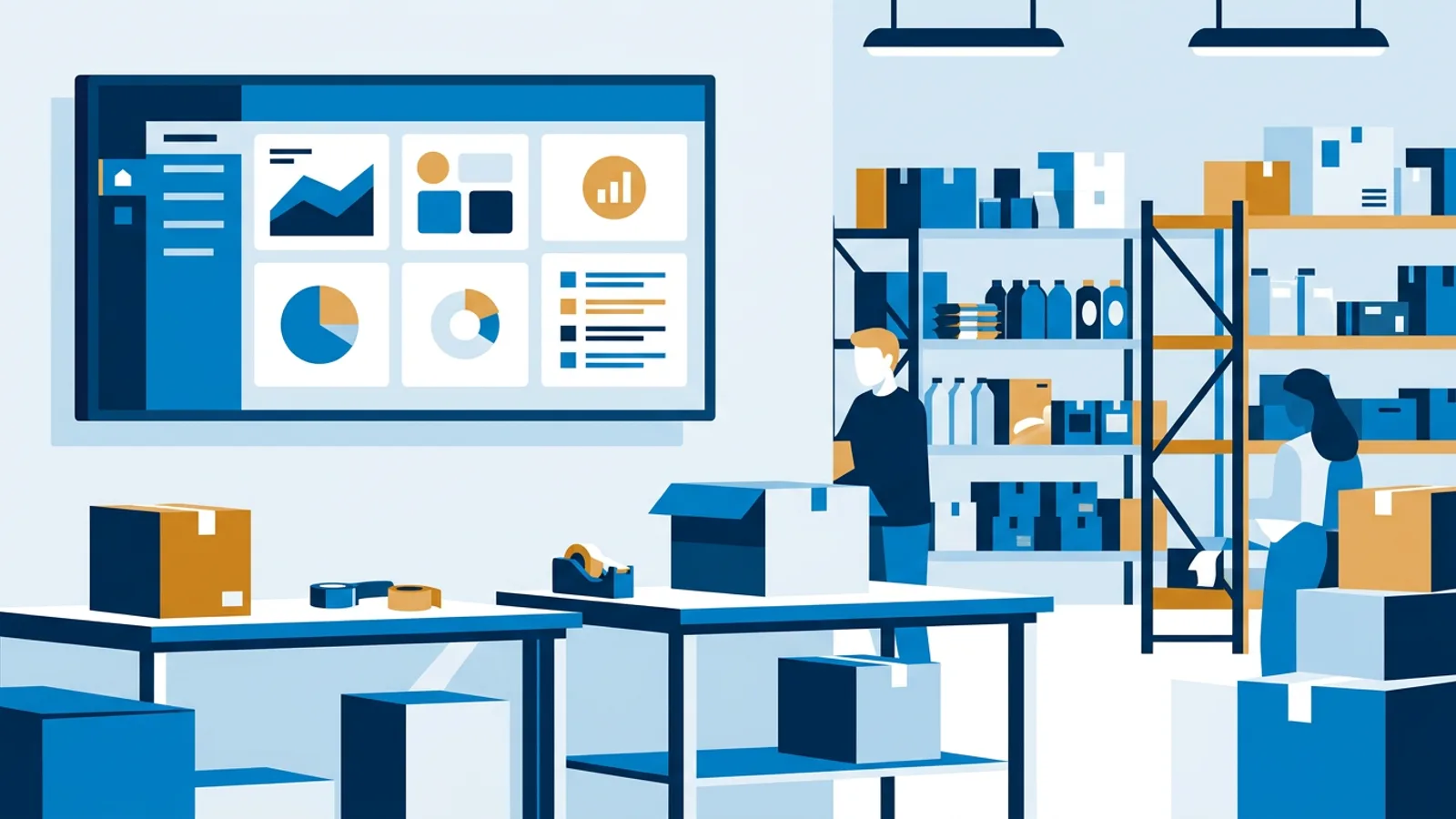
A warehouse dashboard TV shows your pickers and packers the few numbers that decide their next hour: how many picklists are waiting, how many orders are still open, which products are on backorder and what is running low. If you pick from your own warehouse and run Picqer, you can put those numbers on a wall screen with one API key and a cheap player, without anyone logging into Picqer on the TV.
This guide is for the webshop owner or operations lead who already lives in Picqer and wants the floor to see the same picture. It covers which numbers belong on the wall, where to hang the screen, how fresh the data has to be, and the mistakes that turn a warehouse KPI screen into wallpaper within a month.
The short version of the setup: connect the Picqer dashboard plugin with an API key from your own Picqer subdomain, assign it to a screen, and leave it running full-time. The rest of this article is about making that screen useful.
What should a warehouse dashboard TV show?
Use one rule to decide: a number goes on the wall only if someone standing in front of it can act on it today. Revenue for the month is nice to know, but a picker cannot do anything with it. A climbing count of waiting picklists at 14:30, an hour before the carrier pickup, is a reason to pull someone off returns and onto picking.
Applied to a typical small webshop warehouse, that rule gives you this:
| Number | Who acts on it | What they do |
|---|---|---|
| Picklists waiting to be picked | Pickers, shift lead | Add hands before the carrier cutoff |
| Open orders | Shift lead, owner | Check whether today's backlog will clear |
| Backorders | Purchasing, customer service | Chase suppliers, warn customers proactively |
| Low stock | Purchasing, whoever restocks pick locations | Reorder or move stock from overflow to pick shelf |
| Best sellers | Pickers, warehouse layout | Keep the fast movers near the packing table |
| Orders and revenue today | Everyone (motivation, context) | Mostly morale; fine as a smaller tile |
The top two rows are the core of an order picking display. If you only had room for two numbers, they would be picklists waiting and open orders.
What about purchase orders and returns?
Open purchase orders and returns waiting to be processed are useful warehouse numbers too, especially on days when a supplier delivery arrives. The Picqer board in TVpilot does not include them. If you need them on the wall, you have two routes: keep checking them in Picqer itself, or send the figures from your own script or an automation tool (Zapier, Make, n8n) to TVpilot's Data API, which shows them as big numbers next to the rest. The Data API is a Premium feature, included in Pro and Business or as the Premium add-on on Starter.
What the Picqer dashboard shows on screen
The Picqer dashboard plugin reads from one API key on your own Picqer subdomain and shows:
- orders and revenue from the warehouse
- open orders
- picklists waiting to be picked
- backorders
- best sellers
- low stock
The plugin is a standard plugin, so it is included on every plan, the Free plan included. The screen only shows the dashboard; nobody's Picqer login sits on a TV in the warehouse.
If you also sell through a storefront platform and want its numbers in the office, the other ecommerce dashboards (Shopify, WooCommerce, bol.com, Mollie and others) work the same way and can share a playlist with the Picqer board on a different screen.
Worked example: a webshop with two screens
Say you run a webshop selling coffee equipment from a small unit outside Utrecht. Three people pick and pack, one person does purchasing and customer service, and the carrier collects at 16:00.
You decide on two screens:
- A large TV above the packing tables, facing the pick aisles.
- A smaller TV in the office next to the purchasing desk.
Step 1: choose a plan
Two screens rules out the Free plan (1 screen). Starter costs €5 per month or €49 per year and includes 3 screens, so you have one spare for later, for example a screen at the goods-in door. Pro (€29 per month, 10 screens) only makes sense here if you want Premium features such as the Data API for purchase orders, or more than one user managing the screens.
Step 2: choose the players
For the packing area, a Raspberry Pi 4 or 5 is a good fit. TVpilot generates a one-command installer in the dashboard, the Pi boots straight into the player, and a watchdog restarts it within about 10 seconds if it ever crashes. It can also switch the TV on and off over HDMI-CEC on a schedule, so the screen is off outside working hours.
For the office, an Amazon Signage Stick works well if you would rather not set up a Pi. Customers in the Netherlands and Belgium order it via amazon.de. It starts TVpilot again by itself after a power cut, which matters in a building where someone switches the main power off on Friday evening.
Step 3: build one playlist per screen
The packing area screen gets the Picqer board, full-time, with nothing else in the rotation. A picker glances up for one second between orders; if the board is hidden behind a promo slide at that moment, the glance is wasted.
The office screen gets the Picqer board too, and you can afford to rotate it with a second slide, such as a calendar of supplier deliveries from the Calendar widget (paste an iCal link). Purchasing looks at it for longer, so a 30-second rotation does not hurt.
Step 4: set the schedule
On the Pi, set the power schedule to 07:30 to 17:30 on weekdays. The player checks the schedule every minute and switches the TV to standby outside those hours. On the Signage Stick, On/Off Hours does the same, with the honest caveat that you should test once whether your TV follows the stick into standby over HDMI-CEC.
Step 5: add the occasional message
When something one-off happens ("Carrier comes at 15:00 today"), push a short slide to the packing screen with Show now for two hours. The screen returns to the Picqer board by itself afterwards, so nobody has to remember to remove the message.
Total recurring software cost for this setup: €49 per year on Starter, paid yearly.
Where to hang a warehouse KPI screen
Placement decides whether the screen gets read. A few rules that hold in most small warehouses:
- Hang it where people already pause. Above the packing table works because packers look up while taping boxes. The end of a pick aisle works less well, because people walk past it with their hands full.
- Face it towards the work, away from the windows. Daylight on a glossy TV hides the numbers for half the day. Check the spot at the sunniest hour before drilling.
- Go bigger than you think. A warehouse wall screen is read from several metres away, so a bigger TV with few large tiles beats a small one with many. If you have to walk up to read it, there are too many numbers on it.
- Mind the forklift and the pallet height. Mount it above the highest stack so a pallet never blocks it.
- Plan power and network at the same time. Wi-Fi in a steel building with full racks can be weak. TVpilot shows each screen's Wi-Fi signal strength in the dashboard; if it is poor, run a network cable to the Pi.
How fresh does warehouse data need to be?
A picker does not need second-by-second updates. The picklist count changes as orders come in and as people pick, and the decision it drives ("do we need an extra picker before 16:00?") is taken a few times per afternoon. A refresh every few minutes is plenty for that decision.
Where freshness does matter is after a network drop. When a TVpilot screen goes offline, it keeps playing from its cache: widgets keep showing their last data, and a small notice on screen says it is playing the saved playlist. That notice is your signal that the numbers are no longer live. Teach the team to recognise it, because a frozen picklist count is worse than a blank screen if people trust it.
Turn on the optional email alert for a screen going offline (and back online), so you hear about it before a picker does. The TVpilot app for iPhone and iPad can also send a push notification when a screen goes offline.
Failure modes to avoid
These are the ways a warehouse dashboard TV stops working in practice:
- Logging into Picqer in the TV's browser. It works for a day. Then the session expires, an update prompt appears, or someone clicks into an order on the shared screen. A dedicated board fed by an API key avoids all of that.
- Too many tiles. If the warehouse screen shows revenue, average order value, best sellers, a clock and the weather, the picklist count gets lost. Keep the packing area screen to the numbers people act on.
- Mixing in marketing content. Rotating the board with promo slides meant for customers makes the floor screen useless for most of each minute. Give the warehouse its own playlist.
- Nobody owns the screen. Decide who reacts when the low stock tile grows. If purchasing never looks at the warehouse screen, put that number on the office screen instead.
- Leaving it on all night. A static dashboard on a TV for 24 hours a day shortens the TV's life and wastes power. Use the power schedule.
When TVpilot fits, and when it does not
TVpilot fits if you run Picqer, pick from your own warehouse, and want one to a few screens showing live warehouse numbers without building anything. The Picqer board is included on every plan, setup is an API key, and the same account can run other screens (an office KPI board, a reception screen) later.
It is probably not the right tool if you need per-picker performance tables, open purchase orders and returns as native tiles without any scripting, or a deep drill-down view on the screen itself. Picqer's own reporting is better for analysis at a desk. It is also not an option if your IT policy requires self-hosted software: TVpilot is hosted SaaS, with customer data hosted in the EU. And if you have one monitor next to one desk where a single person works in Picqer all day anyway, a browser tab may be all you need.
Get your warehouse board on the wall
Pick the screen spot above the packing table, connect your Picqer API key, and put the board on that screen full-time with a power schedule that matches your working hours. The Free plan covers one screen at no cost, so you can test the board in your own warehouse before deciding on Starter for more screens. Create a free TVpilot account and connect Picqer today.
Frequently asked questions
Do I need to log into Picqer on the TV to show a warehouse dashboard?
No. With TVpilot you connect one API key from your own Picqer subdomain, and the TV only shows the dashboard. No Picqer user session runs on the screen, so there is nothing to time out and nobody can click into orders from the warehouse floor.
Which Picqer numbers can TVpilot show on a TV?
The Picqer dashboard shows orders and revenue from the warehouse, open orders, picklists waiting to be picked, backorders, best sellers and low stock. Open purchase orders and returns are not part of the board; you can send those figures yourself through the Data API, a Premium feature.
Is the Picqer dashboard included in the free plan?
Yes. The Picqer plugin is a standard plugin, so it is included on every plan, including the Free plan with one screen. For two or three screens, Starter costs €5 per month or €49 per year (excl. VAT) and includes 3 screens.
What happens to the warehouse screen if the internet drops?
The screen keeps playing from its cache and widgets keep showing their last data, with a small notice on screen saying it is playing the saved playlist. The numbers stop updating until the connection is back, so turn on the email alert for offline screens and make sure the team recognises the notice.