Display API Data on a TV: A Developer's Guide
To display API data on a TV, you send a web request with your data to a signage feed, and every screen showing that feed redraws within seconds. With TVpilot you don't write a front end, host a dashboard page or keep a browser tab alive on the TV. You pick one of four feed shapes, push data from your till, booking system, script or no-code tool, and the screen handles layout and refresh.
This guide is for the developer or agency asked to "get our numbers on the TV". It covers which feed shape fits which data, how to structure updates so the screen never drifts out of sync, how to keep the API key safe, how to wire it up from Zapier, Make or n8n, and a full worked example: an order-ready board for a takeaway. The product page for the feature is the TVpilot Data API.
The Data API is a Premium feature, included in Pro and Business or on Starter with the Premium add-on.
How a digital signage API differs from building your own dashboard
The usual DIY route is a web page that polls your backend, opened full screen on a smart TV. It works, and for a single internal screen it can be fine. The costs show up later: the TV's browser caches an old version, the page crashes overnight and nobody notices, the layout breaks on a 4K panel, and when marketing wants a promo slide between the numbers you are now building a CMS.
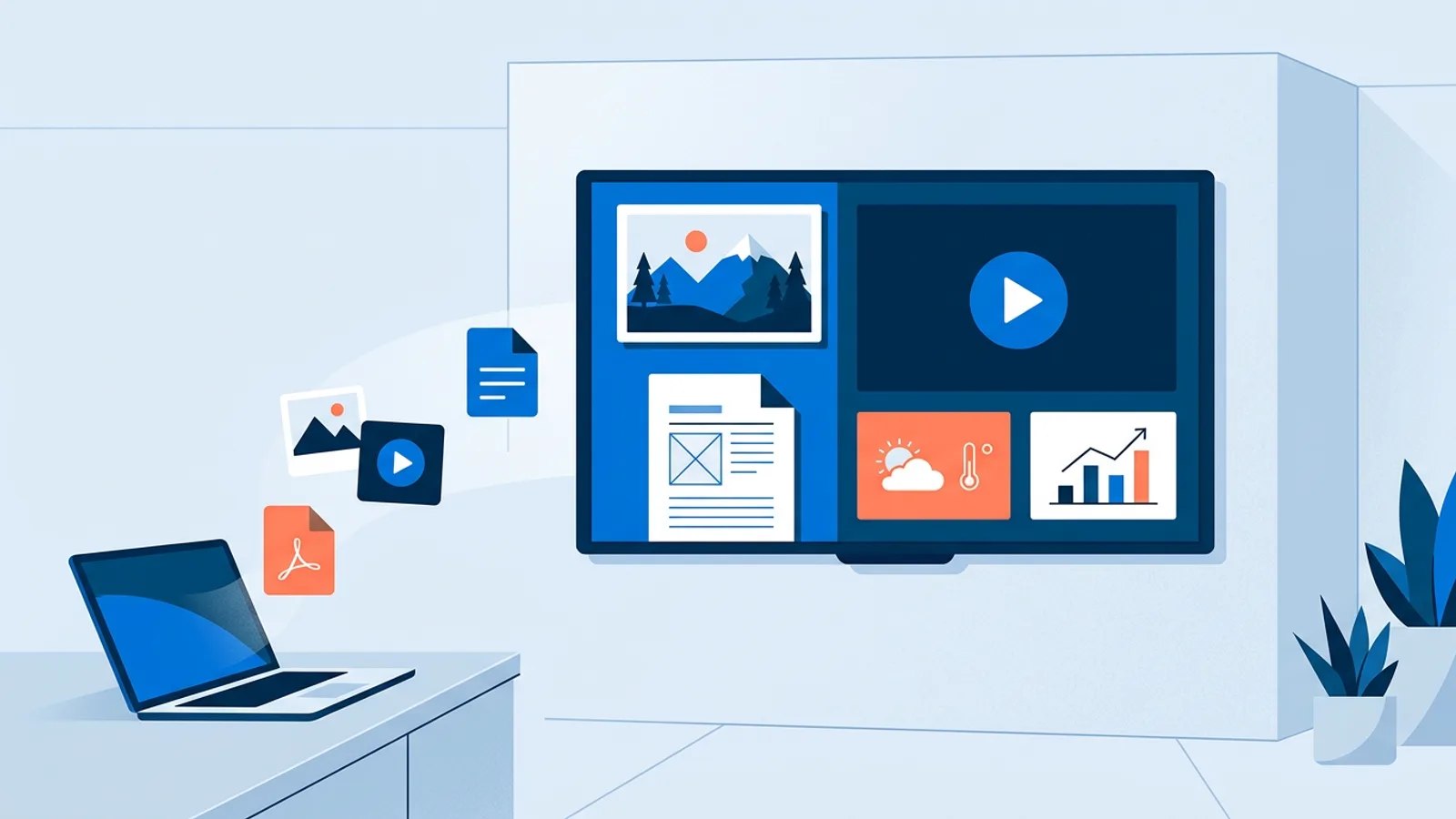
A push-based digital signage API flips the direction. Your system sends data when something changes; the signage platform owns rendering, playlists, scheduling and the player on the TV. Any system that can send a web request can feed a screen: a till, a booking or ticketing system, your own software, or Zapier, Make and n8n. API keys are issued per organisation, so each customer's environment gets its own key.
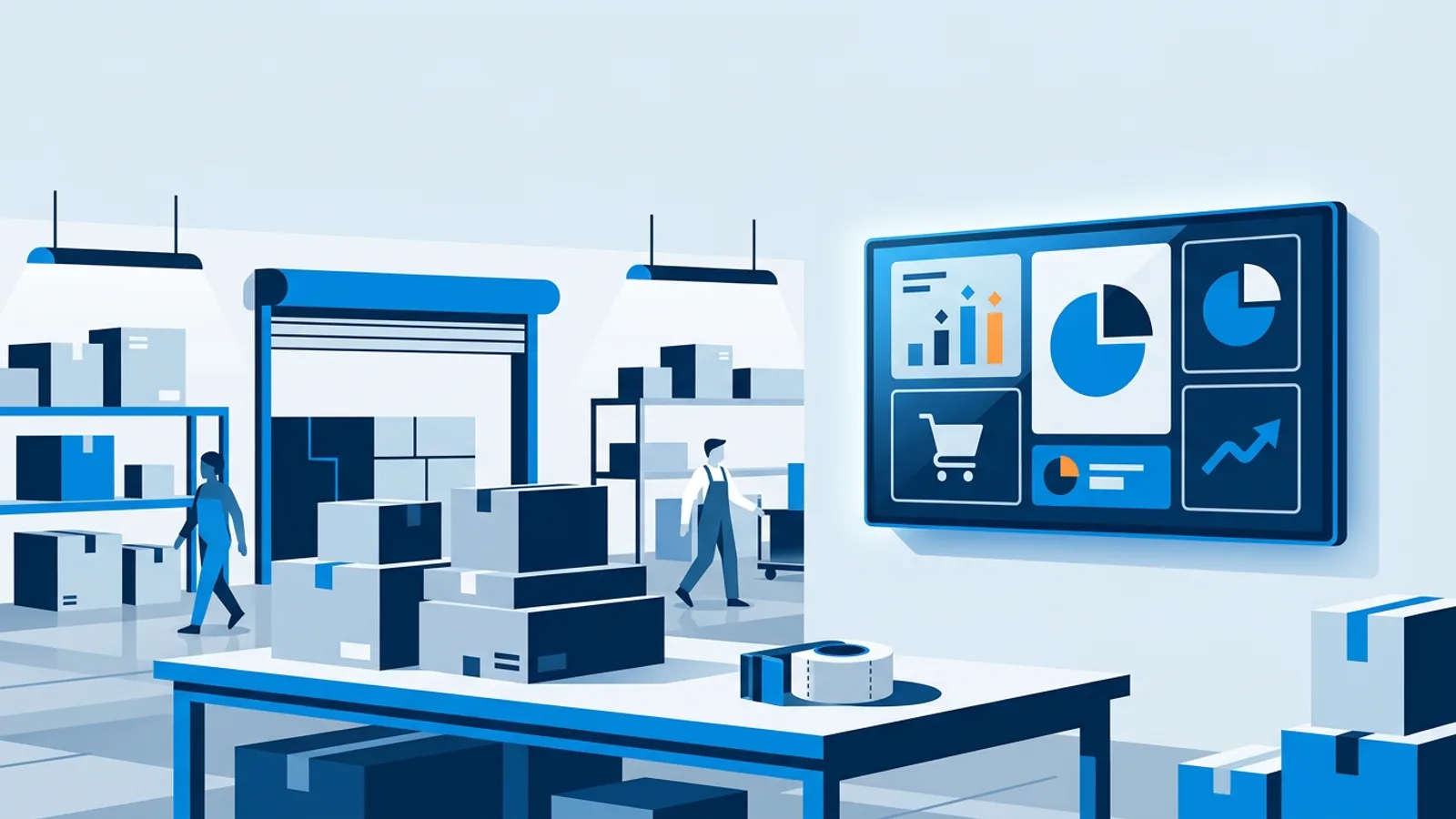
Decision rule: if the data already lives in a system TVpilot connects to natively (Shopify, Stripe, Help Scout, Power BI and others in the integrations catalog), use that plugin and skip the API. Use the Data API when the data lives somewhere only you can reach: an in-house database, a niche POS, a spreadsheet, a sensor script.
The four feed shapes, with example payloads in plain words
Every feed is one of four shapes. Choosing the right one is most of the design work, because the shape decides how the screen draws the data.
| Shape | What the screen shows | Typical source |
|---|---|---|
| Figures | Big numbers with an optional change arrow | Sales today, tickets sold, open cases |
| List | A table or ranking that pages by itself | Leaderboard, class list, stock table |
| Order board | Order numbers being prepared and ready to collect | Takeaway, bakery counter, click and collect |
| Menu | Items with prices and categories, sold-out items struck through or hidden | Food truck, bar, canteen |
Figures
In plain words, a Figures feed is a short set of big numbers: "Visitors today: 412", "Tickets sold: 1,250", "Open orders: 7", each with an optional arrow that shows the direction of change. Use it for three to six numbers that people read from across a room. More than that and nobody reads any of them.
List
A List feed is a table or ranking: a sales leaderboard of reps and their revenue, or the evening's events at a venue. The screen pages through long lists on its own, so you send the whole list and don't paginate yourself. Do the sorting and filtering in your own system, where the logic already lives; the feed is for showing the result.
Order board
An Order board feed is two groups of order numbers: preparing and ready. When a number becomes ready it lights up on screen, with an optional chime. Send numbers only, never customer names, because a pickup screen faces the public.
Menu
A Menu feed is items with prices, grouped in categories, where some items can be marked sold out. Sold-out items are struck through or hidden, depending on the setting. This fits a single venue that wants its POS to drive the board. If you run a chain with branch prices, zones and allergens, look at Smart Prices instead: it has its own price API at /api/data/v1/prices that a till, ERP or no-code tool can GET and PATCH with a Data API key.
The exact endpoints, field names and update behaviour for each shape are in the Data API section of the dashboard and the help center. Build against those rather than guessing from the plain-word descriptions above.
Send the current state: how to push data to digital signage without drift
Event-driven systems are tempting to wire up one event at a time: "order 42 is ready" becomes one small request. The risk is drift. If one request fails (network blip, a crashed worker, a webhook your tool silently dropped), the screen is wrong until something corrects it, and nothing corrects it if every request only describes one change.
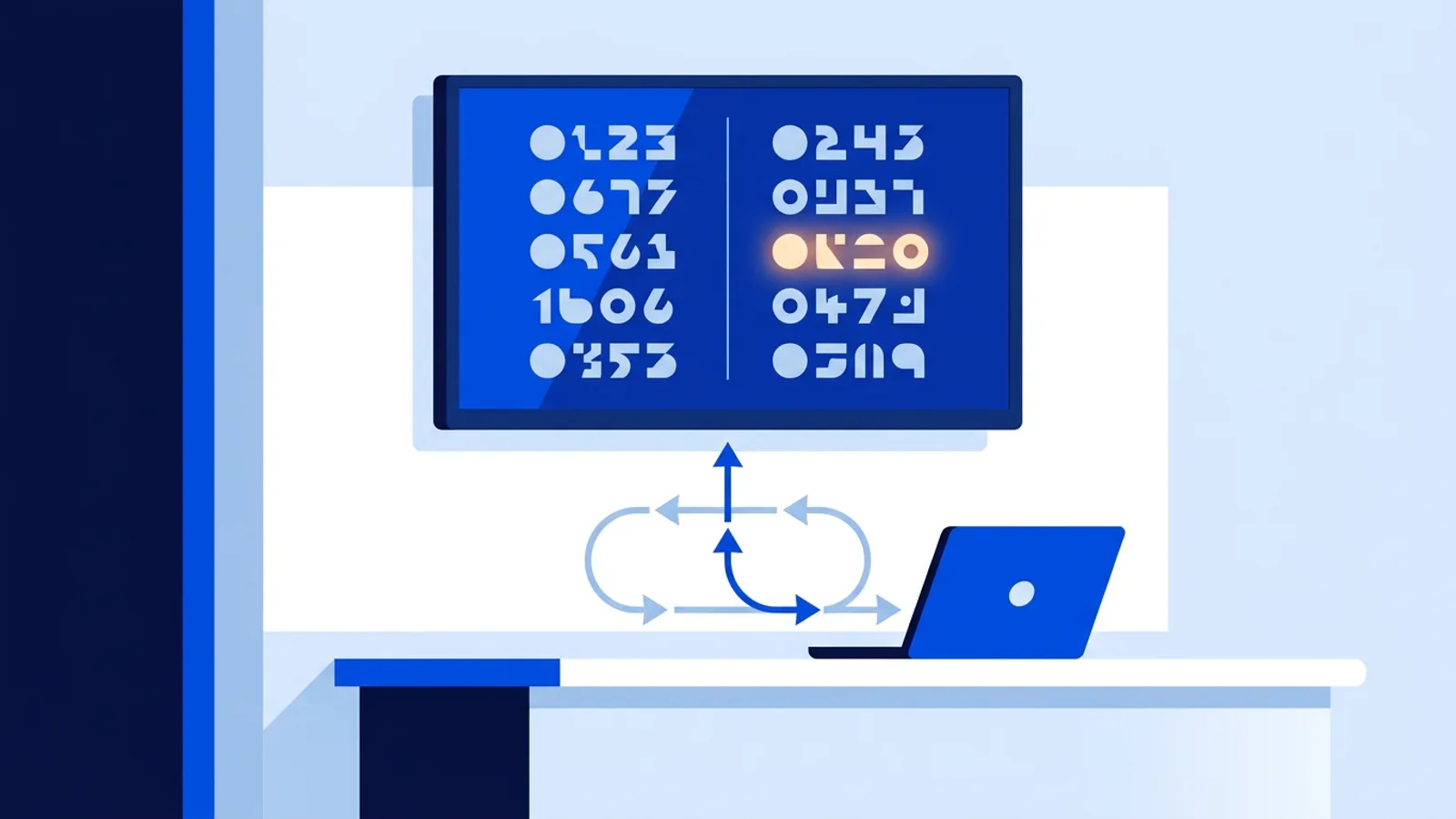
The safer habit is to build every request from your source of truth and send what the screen should show right now: the full set of figures, the whole list, every open order, the complete menu. A failed request then costs you only until the next one arrives.
Decision rule: send on events, and also send on a schedule. Push the current state the moment something changes, and push it again every few minutes and at opening time from the same source. The scheduled send heals anything an event missed. If your source system can't produce a full state (some webhooks only fire on change), keep a small table on your side that mirrors what the screen should show and send from that.
API keys: treat them like a till password
Keys are created per organisation. A few habits prevent the expensive mistakes:
- Copy the key into your secret store or the no-code tool's credential field right after you create it, so it never sits in a chat message or a notes file.
- Never put the key in browser JavaScript, a public repo or a Google Sheet shared with the whole team. Calls should come from a server, a function or the automation platform.
- Agencies: keys are issued per organisation, so each customer's environment gets its own key. Keep a record of which system uses which key, so you know exactly what to reconfigure if one leaks.
- Only push wallboard-safe data. Anything on a feed can end up on a screen people walk past.
Zapier, Make and n8n: digital signage with no code
You don't need a developer to push data. All three automation platforms can send an authenticated web request:
- Zapier: a trigger (new row in Google Sheets, new form response, new deal in your CRM) followed by the Webhooks by Zapier action with a custom request.
- Make: any trigger module followed by the HTTP module.
- n8n: any trigger node followed by the HTTP Request node. n8n can be self-hosted, which suits teams that don't want data passing through another cloud service.
A typical Zapier digital signage setup: a café keeps its daily specials in a Google Sheet. When a row changes, Zapier sends the full menu from the sheet to the Menu feed. Marking an item sold out is then one cell edit on a phone, and the screen strikes it through within seconds.
One caution: automation platforms batch or delay some triggers depending on the plan you're on. For a menu that's fine. For an order board where customers stare at the screen waiting for their number, connect the POS directly or use a webhook-style trigger that fires immediately.
Worked example: a takeaway order-ready board
Say you run a takeaway with a counter, a kitchen and a POS that already tracks order status. At lunch you handle around 60 orders an hour, and customers crowd the counter asking whether theirs is ready.
The setup:
- Screen: one TV above the pickup counter, driven by a Fire TV Stick, an Amazon Signage Stick or a Raspberry Pi 4.
- Plan: Starter (€5/month, 3 screens included) plus the Premium add-on (€9/month) is €14/month. If you also want screens in a second shop or more than three screens, Pro at €29/month includes Premium and 10 screens. Prices exclude VAT.
- Feed: create an Order board feed and an API key in the dashboard, and give the key to whoever configures the POS webhook or a small middleware script.
- Events: whenever an order changes state (placed, bumped to ready by the kitchen, handed over), the script sends the POS's current lists of preparing and ready orders. A newly ready number lights up and the chime plays. At 60 orders an hour that's roughly 180 small requests an hour, one per state change.
- Healing: every five minutes, and at opening, the script sends the same current lists again. A missed webhook then costs at most five minutes of a wrong number.
Outside the rush, the same screen can show promos. Put the order board in a playlist with your promo slides, and use a smart trigger on the Data API feed with the rule "orders ready". With the takeover option, the order board takes over the screen while any order is ready and the promos play the rest of the time. Screens check trigger rules about every minute, so the switch is quick. The smart triggers guide covers the rule types in detail.
Failure modes to plan for:
- Stale numbers at closing: if nobody clears collected orders, tomorrow opens with yesterday's numbers. At closing time, send the current state, which is no orders preparing and none ready.
- POS goes offline: nothing gets sent, so the screen shows whatever arrived last. Staff should know to call numbers by voice when the till is down.
- Duplicate numbers: if your POS restarts numbering mid-day, two orders can share a number. Prefix by channel (W12 for web, C12 for counter).
If your POS can't send webhooks at all, you don't need the API. The Now serving plugin, included on every plan including Free, has its own Order board for pickup counters where staff move numbers from Preparing to Ready by hand.
When TVpilot is the right fit, and when it isn't
It fits when you have data in a system you control, want it on one or many TVs within seconds, and don't want to maintain a rendering front end, player software and scheduling. Agencies get per-organisation keys and, on Business, a partner portal to manage customer environments.
It isn't the right fit if you need a fully custom visual that none of the four shapes can express; a self-built web page may serve you better there, and you can still play it as a web page slide. It also isn't for you if you must self-host: TVpilot is hosted software and not open source. And screens need an internet connection to receive new data, so a feed can't update a TV that's offline.
Display API data on a TV: your first feed
Start with one feed and one screen: pick the shape, create a key, send the current state with curl or a Zapier webhook, and watch the TV update. Once that works, send on every event and add a scheduled resend for safety. Create a TVpilot account, connect a screen, and add Premium on Starter or choose Pro when you're ready to switch on the Data API.
Frequently asked questions
Which TVpilot plans include the Data API?
The Data API is a Premium feature. It is included in the Pro plan (€29/month) and the Business plan (€99/month), and on the Starter plan (€5/month) you can add it with the Premium add-on for €9/month. Prices exclude VAT. It is not available on the Free plan.
Can I push data to digital signage without writing code?
Yes. Zapier, Make and n8n can all send an authenticated web request to a Data API feed. A common setup is a Google Sheet as the source: when a row changes, the automation sends the full content to the feed and the screen updates within seconds.
What kinds of data can a Data API feed show?
A feed has one of four shapes: Figures (big numbers with an optional change arrow), List (a table or ranking that pages by itself), Order board (order numbers being prepared and ready to collect, with a highlight and optional chime when an order becomes ready) and Menu (items with prices and categories, with sold-out items struck through or hidden).
Can a screen switch to the order board only when orders are ready?
Yes, with smart triggers, which are also Premium. A rule on a Data API feed such as orders ready can make the order board join the rotation or take over the screen while the rule holds. Screens check trigger rules about every minute.