Digital Signage Management Best Practices That Work
Digital signage management best practices come down to one habit: treat the screen network like infrastructure, not a poster you hang once and forget. A screen stuck on the same slide for three months, or one that quietly went dark last Tuesday and nobody noticed, does more damage to a business than having no screen at all. Visitors assume the business is closed, or worse, that nobody's paying attention.
This guide is the operations half of that story. If you want the rules for making a screen actually readable, layout, contrast, font size, those live in our companion piece on digital signage best practices for design. Here we're covering how to run a signage network day to day: refresh cadence, remote monitoring, scheduling, outage recovery, and keeping software current.
Most of what follows applies whether you're running an expensive commercial media player or a Raspberry Pi signage setup held together with an HDMI cable and good intentions. The hardware matters less than the habits.
Digital signage management best practices start with a content refresh cadence
A screen that never changes stops being noticed within a few days. Regular customers stop looking at it entirely. Set a cadence per content type instead of updating on a whim:
- Menus and pricing: update whenever the price or item actually changes, not on a schedule. Wrong prices on a screen are worse than no screen.
- Promotions and events: swap weekly at minimum, even if it's the same promotion restated with a new date, so it doesn't look abandoned.
- Evergreen content (hours, wifi password, welcome messages): review monthly to catch outdated details.
- Seasonal or event-driven boards: build the swap into your calendar, not into someone's memory.
The easiest way to keep this from slipping is to schedule content ahead of time by day of week and time slot rather than manually swapping playlists. Lunch menu from 11 to 2, happy hour board from 4 to 7, closed-sign screen overnight. Once that's set up it runs without anyone touching it.
How to manage digital signage screens without visiting each one
The single biggest operational risk in signage is not knowing a screen has gone offline. A player can lose network, freeze on a corrupted frame, or just sit on a boot loop, and unless someone walks past it and looks up, it can stay broken for days.
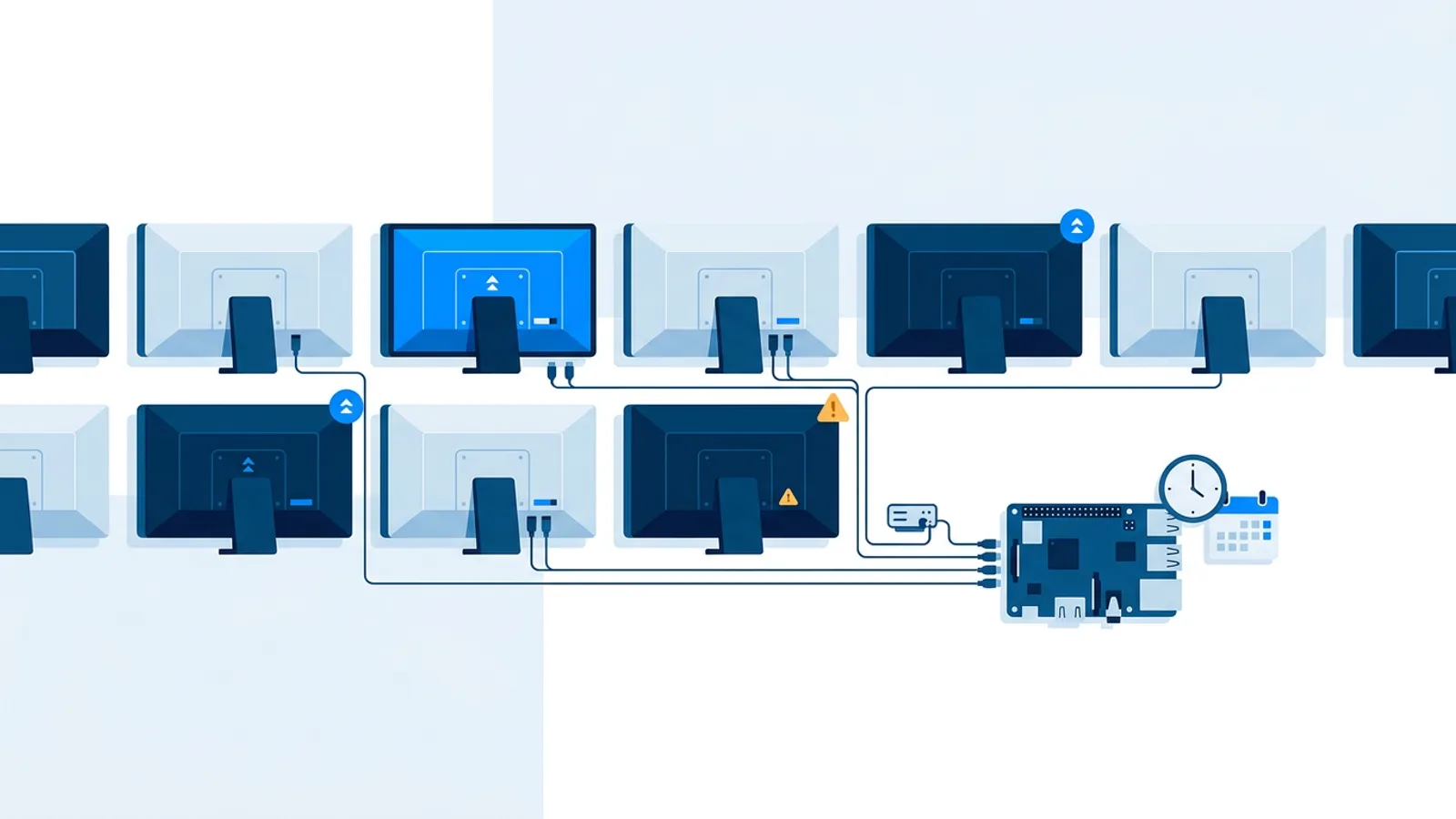
This is what remote monitoring is for. A signage dashboard should show, at a glance, which screens are online, which are offline, and which haven't reported in recently (a stale heartbeat is often the first sign of trouble, even before a screen shows as fully offline). TVpilot's dashboard tracks exactly this: online/offline status and heartbeats per screen, so you can spot a problem from your phone instead of from a customer complaint.
On the player side, software that can recover on its own matters more than software that never fails. TVpilot's Raspberry Pi player runs a watchdog process that checks the playback process is alive and restarts it within roughly 10 seconds if it hangs or crashes. That doesn't prevent every failure, but it turns most freezes into a brief flicker instead of a screen stuck for a week.
Scheduling power on/off and content by day and time
Leaving a TV on 24/7 wastes power and shortens the panel's life for no benefit if the business is closed at 2am. Two separate things need scheduling, and it's worth keeping them distinct in your head:
Content schedule: what plays, and when, tied to day of week and time slot.
Power schedule: whether the screen itself is on or in standby.
On a Raspberry Pi setup, power scheduling can run through HDMI-CEC, the same protocol your TV remote uses to talk to connected devices. The player checks the schedule on a short interval and switches the TV on or into standby over the HDMI cable, no smart plug or extra hardware required. We cover the general approach, including options beyond CEC, in how to schedule a TV to turn on and off automatically.
Getting this right does two things: it saves on electricity for screens that only need to run business hours, and it means a screen genuinely looks intentional, not like a TV someone forgot to turn off in 2023.
Plan for outages and automatic recovery
Power cuts and internet drops happen. The question is whether your signage setup comes back on its own or needs a person on site with a keyboard.
A well-built player should reboot into the same kiosk state after a power loss, reconnect to the network once it's available, and resume showing the last cached content while it waits to sync anything new. Most signage players, TVpilot's included, need an internet connection to pull new content and schedule changes. During an outage a screen keeps showing whatever it already had loaded rather than fetching fresh updates. That's a limitation worth planning around. If a screen absolutely must display brand-new content the moment it's created, offline caching alone isn't enough. We go deeper on this tradeoff in digital signage offline playback: how it really works.
The practical takeaway: don't rely on manual intervention as your outage plan. Confirm your player auto-reconnects and resumes without a physical restart, and test it once by unplugging the router for five minutes and watching what happens.
Keep player software updated without site visits
Driving to every location to plug in a keyboard and run an update is the fastest way to make a signage rollout unmanageable past three or four screens. Updates need to happen remotely, and ideally without anyone having to remember to trigger them.
TVpilot's Pi player checks for updates automatically every day at 03:00, when nobody's watching the screen anyway, and applies them without intervention. For anything that needs to happen sooner, like a security fix or a feature you actually want now, the dashboard also supports an on-demand remote update and a remote reboot, so a frozen or outdated player can be nudged back into shape from your laptop instead of a service call.
If you're managing signage on hardware or software that doesn't offer this, build a manual update check into your maintenance calendar. Skipping updates indefinitely is how a fleet of screens quietly drifts into a dozen slightly different software versions, each with its own quirks.
Digital signage maintenance checklist
A short recurring checklist catches most problems before customers do.
| Task | Frequency | Why it matters |
|---|---|---|
| Check dashboard for offline/stale screens | Daily | Catches outages before a customer does |
| Review upcoming scheduled content | Weekly | Prevents stale menus or expired promos going live |
| Confirm power on/off schedule matches business hours | Monthly | Seasonal hour changes get missed otherwise |
| Physically inspect screens (dust, loose cable, mount) | Monthly or quarterly | Catches hardware issues software can't see |
| Confirm player software is on the latest version | Monthly | Especially important if you don't have auto-updates |
| Test recovery after a power cut | Quarterly | Confirms the setup actually self-heals as expected |
Digital signage uptime tips that apply to any setup
A few habits reduce downtime regardless of what platform or hardware you're running:
- Use a wired ethernet connection where possible. Wifi drops are still the most common cause of a screen going offline in retail and office environments.
- Put the player on its own power source, ideally a slightly oversized power adapter, and avoid daisy-chaining it through a power strip shared with heavier equipment.
- Keep a spare SD card or backup player pre-configured if the location is hard to reach. Swapping hardware is faster than debugging on site.
- If you're running signage on Android TV or a Fire TV Stick, know that most signage platforms, TVpilot included, don't yet ship a dedicated native app for those devices; you run the signage player through the device's browser instead. It works fine for most content, but it's worth testing your specific screen before relying on it for something business-critical.
When TVpilot is, and isn't, the right fit
TVpilot is a good fit if you want a dashboard that shows screen status at a glance, scheduling by day and time, remote updates and reboots, and TV power control without extra hardware, on a Raspberry Pi or through a browser on whatever screen you already have. The free plan covers one screen with 250 MB of storage, no credit card, so it's easy to test the monitoring and scheduling workflow before committing anything.
It's a poor fit if you need a fully offline signage setup that keeps pulling in brand-new content with no internet connection at all, or if you specifically need a dedicated native app on Android TV or Fire TV rather than the browser route. It's also hosted software, not something you self-host or run on your own server, which matters if that's a hard requirement for your organization. For a broader look at how the pieces of a signage system fit together, see what a digital signage CMS actually does.
Pick one screen in your network right now and check when it last reported in. If the dashboard shows a heartbeat from more than a few minutes ago, that's the first problem worth fixing before anything else on this list. Sign up for a free TVpilot account and connect a screen to see what current monitoring actually looks like from your phone.
Frequently asked questions
How often should digital signage content be updated to avoid feeling stale?
It depends on the content type, not a fixed calendar. Prices and menus should change the moment the real price changes. Promotions should rotate at least weekly even if the offer is the same, just to avoid looking abandoned. Evergreen content like hours or wifi passwords only needs a monthly review to catch anything outdated. The safest fix is scheduling content ahead by day and time slot so it changes automatically instead of relying on someone remembering.
What's the best way to monitor whether digital signage screens are online?
Use a dashboard that shows per-screen online/offline status and heartbeats rather than relying on someone noticing a blank TV in person. A heartbeat that hasn't updated recently is often the first sign of trouble, even before a screen shows as fully offline. TVpilot's dashboard tracks this per screen so you can check status from a phone instead of finding out from a customer.
Can a digital signage player recover automatically after a power outage?
A well-built player should reboot into its kiosk display automatically once power and network return, without anyone visiting the site. TVpilot's Raspberry Pi player also runs a watchdog that restarts playback within roughly 10 seconds if the process crashes or freezes, and it checks for updates and applies fixes automatically each day at 03:00 without a manual restart.
Do digital signage players work without an internet connection?
Most players, including TVpilot's, need an internet connection to pull new content, schedule changes, and remote commands. During an outage the screen keeps showing whatever content it already had cached rather than fetching anything new, and it resumes normal syncing once the connection comes back. If a screen must always show brand-new content the instant it's created, that's a limitation worth planning around rather than something offline caching alone can solve.