Meeting Room Schedule Display: Bookings by the Door
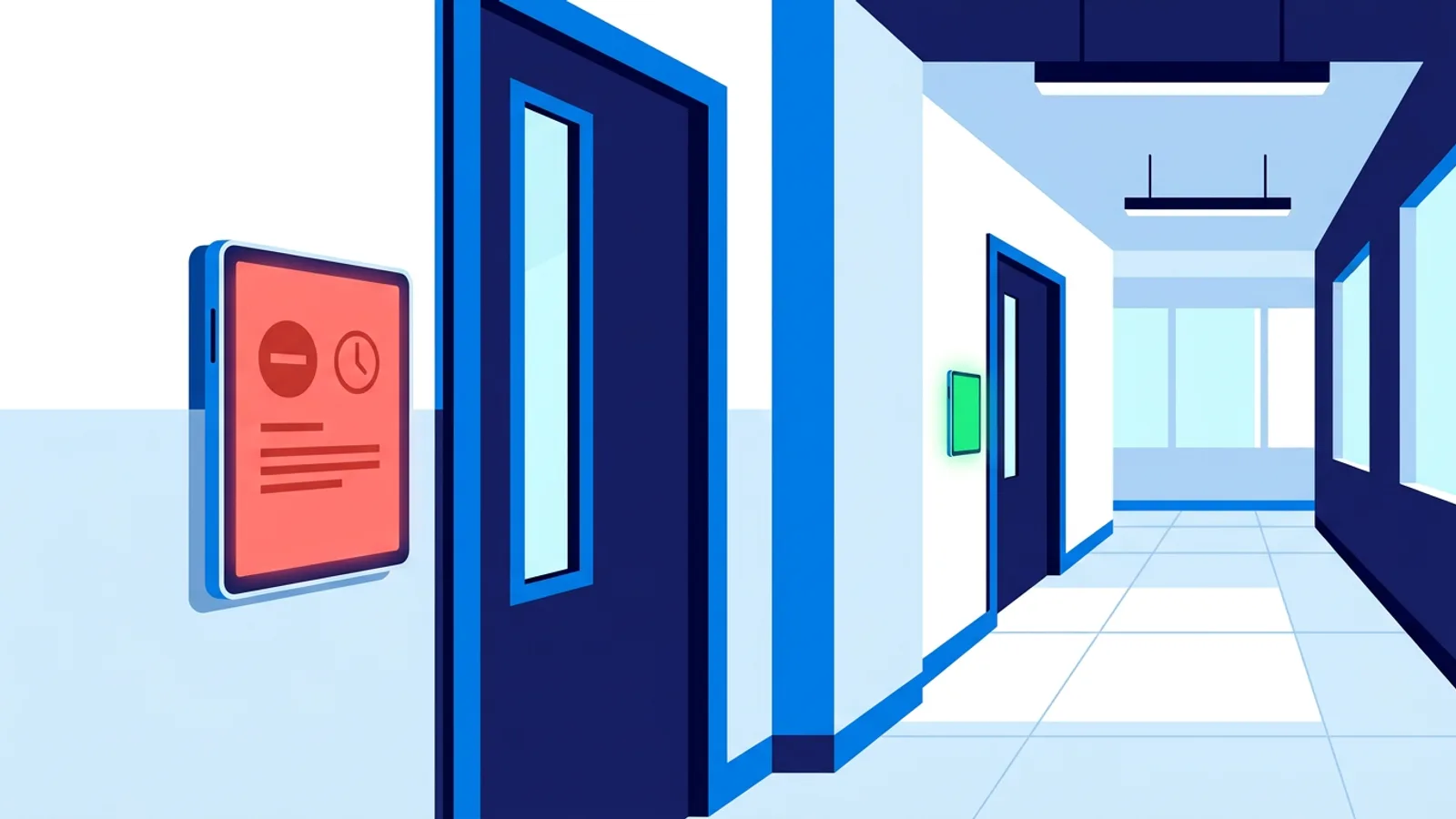
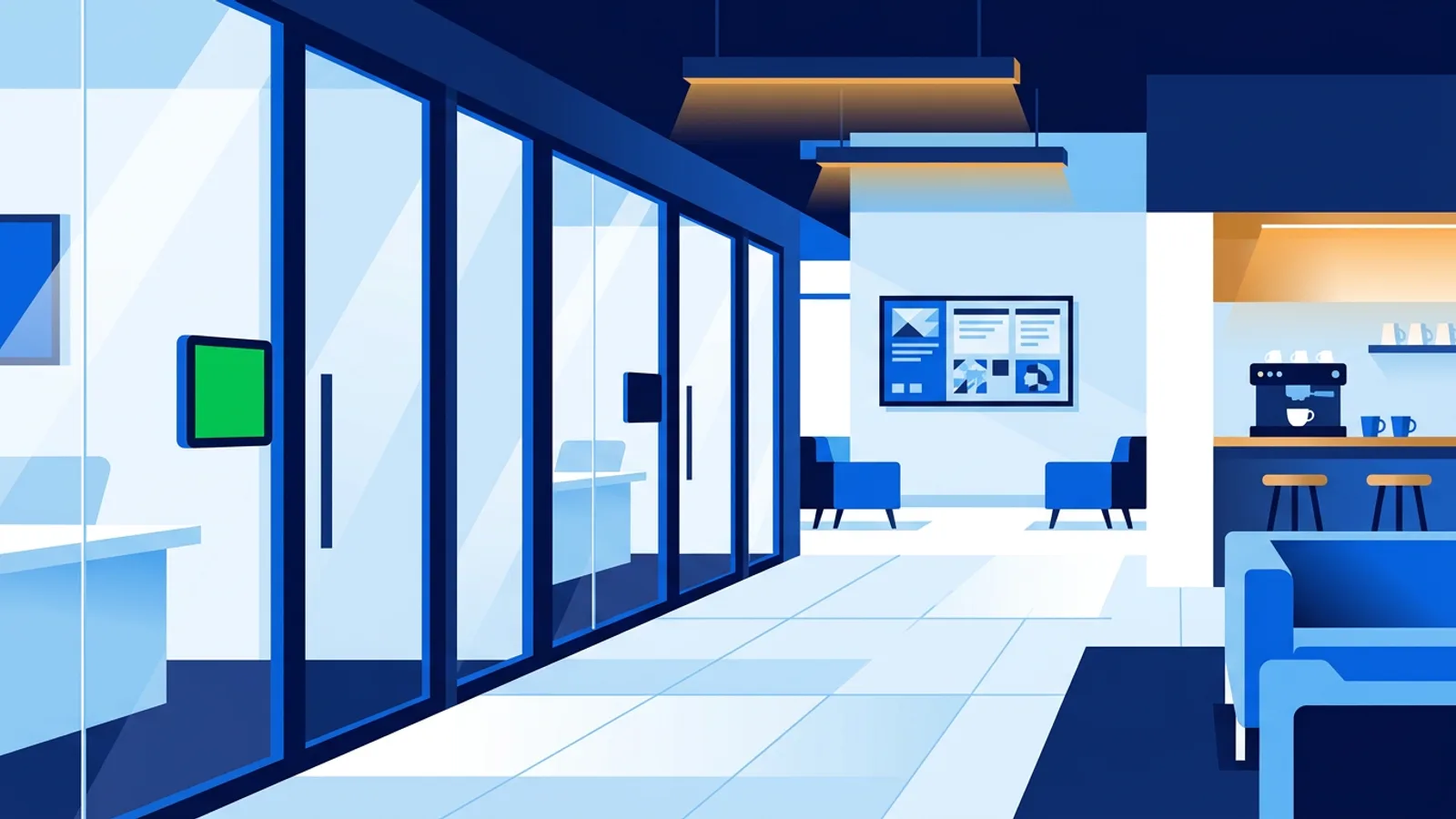
A meeting room schedule display answers one question for the person standing in the corridor: can I walk in right now? The simplest working setup is a small screen or tablet by each door that reads the room's existing Google Workspace or Outlook calendar and shows green when the room is free, red when it is busy, plus the current meeting and the next one.
This guide is for the office manager who keeps getting asked "is anyone in room 3?" and wants to fix it without moving everyone to a new booking system. You will see what the screen must show, when a panel per door beats one hallway overview, how to get the calendar link out of Google or Microsoft 365, and what tends to go wrong. TVpilot's meeting room panel is used as the example throughout, but the decisions apply to any setup.
What a meeting room schedule display must show at a glance
People read a door display from two or three metres away while walking. Anything they have to stop and study is too much. Three pieces of information cover almost every situation:
- Free or busy right now, as a colour. Green for free, red for busy. Colour is readable from further away than any text and works for someone who only glances sideways.
- The current booking: the meeting title (or just "Busy") and when it ends. "Busy until 14:30" tells someone whether to wait or find another room.
- What is next: the next booking and its start time. A green screen with "Next: Sales weekly at 11:00" at 10:52 tells you the room is technically free but not for long.
That is the classic door panel layout, and it is exactly what TVpilot's meeting room panel shows: free or busy right now, the current booking and what is next, green when free and red when busy.
Leave off the rest. A full day agenda, the weather and a company logo animation all compete with the one colour that matters. If you want a full day view somewhere, put it on the hallway screen.
Door panel or one hallway overview?
Where the screen goes depends on how people move through your office.
| Situation | Choose | Why |
|---|---|---|
| Rooms spread along a corridor, people walk up to a door and hesitate | A panel by each door | The answer is where the question gets asked |
| Rooms clustered near the entrance or kitchen | One overview screen | People can pick a free room before they walk anywhere |
| Two or three rooms next to reception | One overview screen | Cheaper, one device to look after |
| Glass walls you can see through | One overview screen, or nothing | People can already see whether a room is occupied; they need to know about the next booking |
| Rooms often booked but left empty | A panel by each door | The red screen next to an empty room gets the no-show conversation started |
The decision rule: if people decide at the door, put the screen at the door. If they decide before they set off, put one screen where they set off from.
You can also combine them: panels on the doors of the rooms that are far from the entrance, and one overview in the hallway.
Hardware for a door panel
A door panel needs a small screen, power and Wi-Fi. Three practical routes:
- A tablet you already own. An iPad runs the player URL in Safari full screen, with Guided Access so nobody can swipe away to other apps. See the iPad and Mac setup. Mount it in a wall holder and run a cable to it; a tablet on battery dies within days.
- A small monitor with a stick or Raspberry Pi. An Amazon Signage Stick or a Raspberry Pi behind a compact HDMI monitor. Holds up better than a tablet for years of constant use, with no battery to swell or run flat, and both play again by themselves after a power cut.
- A small smart TV with a browser. Works, but a TV at door height is usually larger than the spot allows.
Whatever you pick, the screen is display only. People book the room in their calendar, the same way they do now.
Hardware for a hallway overview
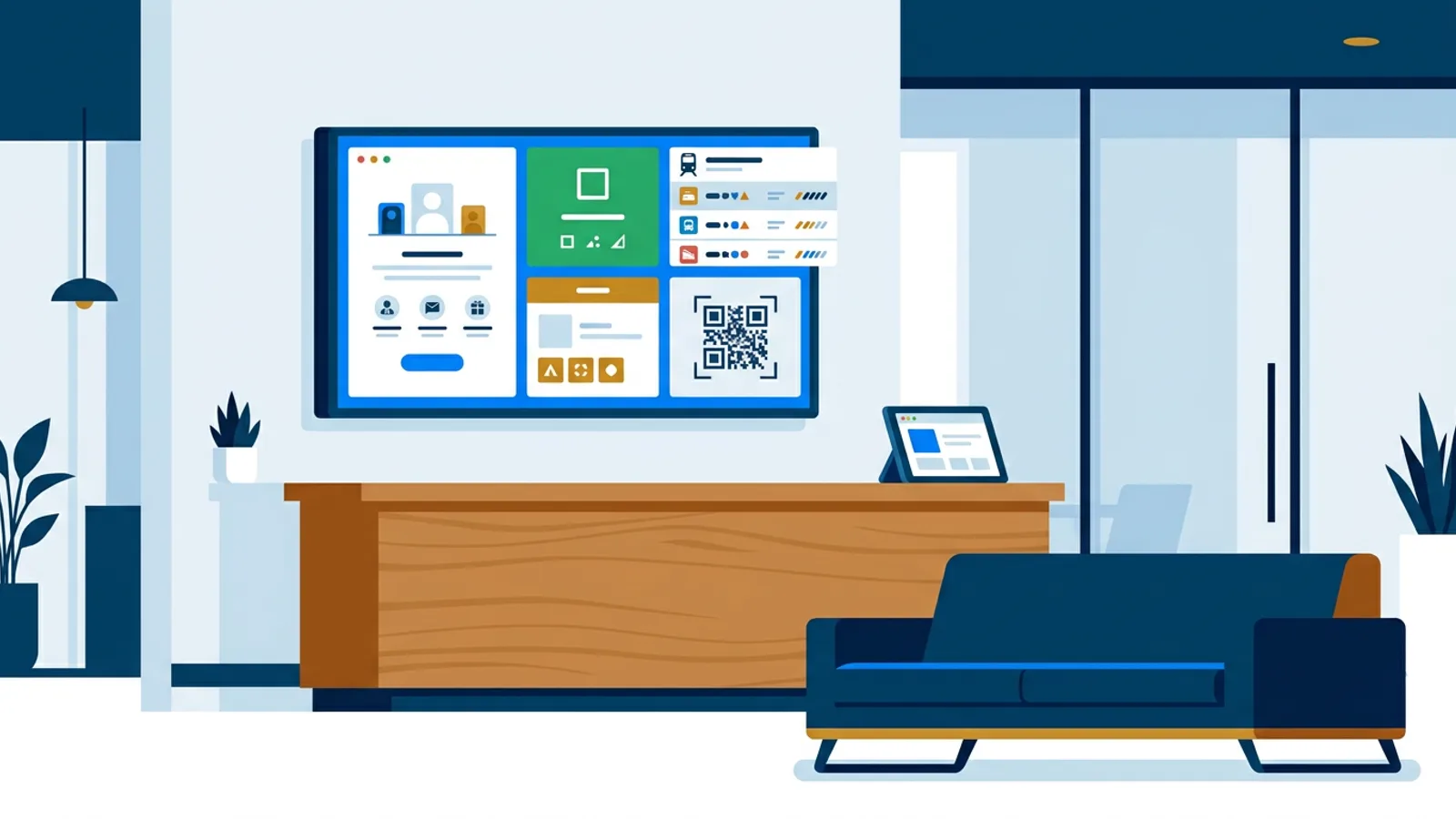
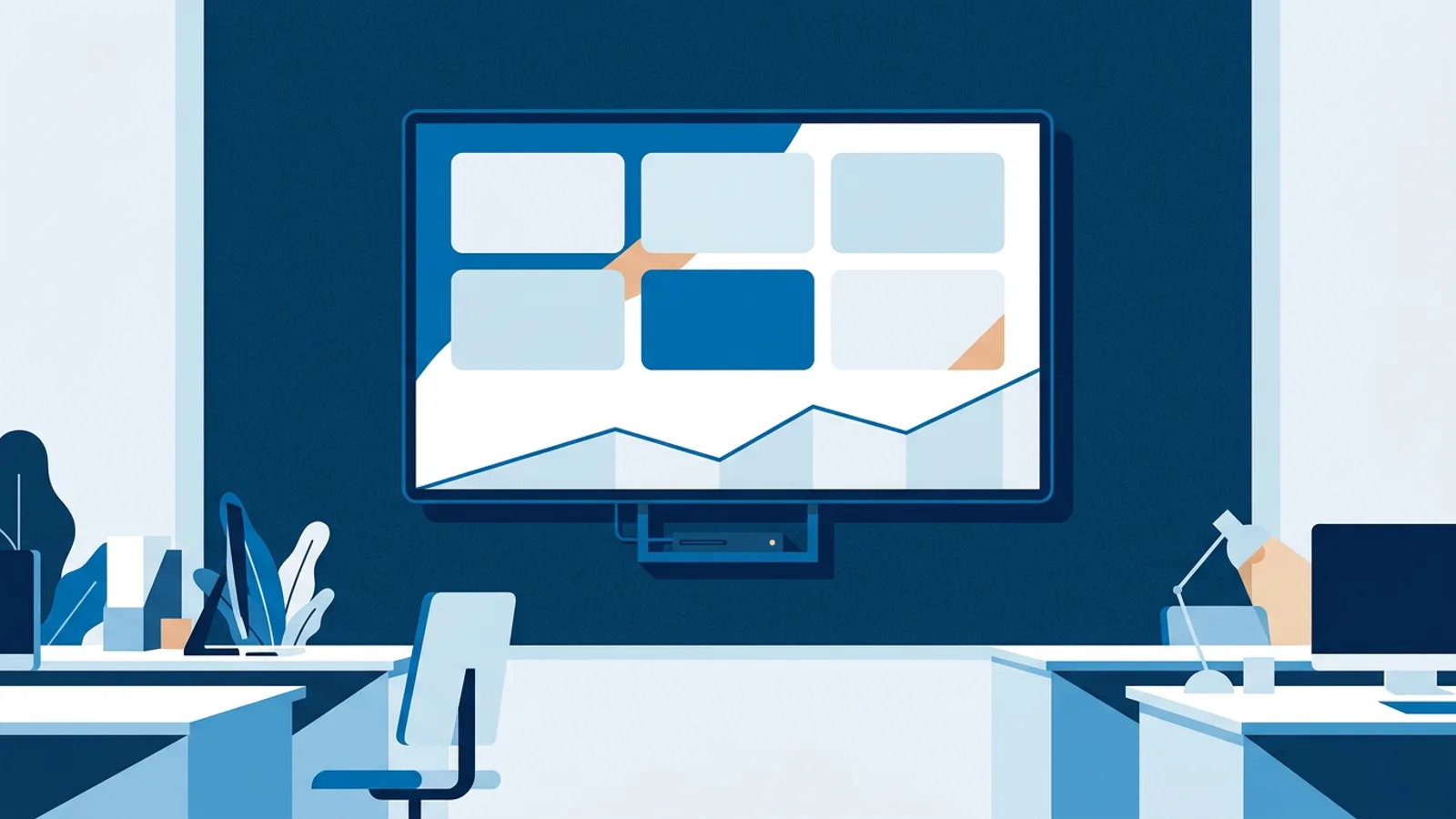
One regular TV with any supported player. For the content, you have two options. A playlist with one meeting room panel slide per room rotates through the rooms, so each gets the full screen for a few seconds. Or use the calendar widget, which takes the same kind of iCal link and shows the schedule as an agenda, day or week view: better if people want to see the whole afternoon at once.
How bookings stay in the calendar people already use
The biggest reason room displays get abandoned is a second booking system that nobody keeps up to date. The panel avoids that because it only reads the room calendar your team already books through Google Calendar or Outlook. Booking, moving or cancelling happens in the calendar app; the screen follows.
The link between the two is an iCal address: a private URL ending in .ics that publishes a calendar's events. You paste that link into the panel and the screen keeps itself current.
Getting the iCal link from Google Workspace
Room calendars in Google Workspace are resource calendars set up by your admin. Someone with sharing rights on the room calendar opens Google Calendar on a computer, goes to the room's calendar settings and copies the secret address in iCal format from the Integrate calendar section. If that option is missing, your Workspace admin has probably restricted external sharing; ask them before trying workarounds.
Getting the iCal link from Outlook or Microsoft 365
In Microsoft 365 a meeting room is a room mailbox with its own calendar. The calendar has to be published to get an ICS link. In Outlook on the web this is under the calendar settings for shared calendars, where you publish a calendar and pick how much detail it shows. For a room mailbox, an Exchange admin often has to enable publishing first, because nobody signs in to the room mailbox day to day. Microsoft documents the steps in its Outlook calendar publishing help.
Decide how much detail the corridor gets to see
Publishing settings decide what appears on the door. Full details put meeting titles on screen, which is useful ("Board meeting" makes people knock less) and sometimes a problem ("Restructuring, legal" outside an open-plan area). If titles can be sensitive, publish availability only. The panel still shows red, green, the end time and the next start time, which covers the main job.
Worked example: four rooms and a hallway
Say you manage an office with four meeting rooms. Rooms 1 and 2 sit near reception, rooms 3 and 4 are at the far end of a corridor where people keep walking in on meetings.
Step 1: pick the screens. Rooms 3 and 4 get a door panel each, because that is where the interruptions happen. Rooms 1 and 2 do not need one; reception staff can already see them. One TV in the hallway near reception shows all four rooms. That is three screens.
Step 2: hardware. Two spare iPads in wall holders with power cables for the doors, and a Raspberry Pi 4 behind the existing hallway TV.
Step 3: calendar links. Your Google Workspace admin copies the secret iCal address of each of the four room calendars. Ten minutes of work if the admin is available.
Step 4: content. Make four meeting room panels, one per room link. Door panel 3 plays only the room 3 panel, door panel 4 only room 4. The hallway TV gets a playlist with all four panels at 8 seconds each, so a full cycle takes 32 seconds.
Step 5: hours. Set the hallway TV's power schedule to office hours, so it is off overnight and at weekends. On the Pi the player switches the TV over HDMI-CEC, no smart plug needed.
Cost. Three screens fit the Starter plan at €5 a month (or €49 a year). If you later add panels for rooms 1 and 2, that is five screens: Starter with two extra screens at €2 a month each, €9 a month in total. With ten or more screens across several floors, Pro at €29 a month includes 10 screens. If you only want the single hallway overview, the Free plan covers one screen at no cost.
What goes wrong, and how to avoid it
Using the wrong calendar. Someone pastes the iCal link of the person who set up the room instead of the room itself. The panel then shows that person's dentist appointment. Always take the link from the room or resource calendar, and test by booking the room yourself for five minutes.
Expecting instant updates. A booking made in Outlook a moment ago is not always on the door straight away, because calendar providers publish feeds with some delay. Book a test meeting and time how long it takes to appear on your setup, so you can tell colleagues what to expect.
Ghost meetings. A recurring meeting that stopped happening months ago keeps the room red every Tuesday. The panel shows what the calendar says, and there is no check-in on the screen to release a no-show booking. The fix is calendar hygiene: once the display is up, ask owners of recurring bookings to clean them up. The red screen next to an empty room makes that conversation easier.
Tablets on battery. Even a well-mounted tablet runs flat if it is unplugged. Plan a socket or a cable route before you buy wall holders.
Wi-Fi at the far end. Corridors at the edge of an office often have the weakest signal. Check it standing at the door with a phone before mounting anything. If the connection drops, the screen keeps showing the last data it loaded, which can be out of date.
Titles nobody should read. Decide on full details or busy only before you go live, not after an awkward meeting title shows up in the corridor.
When TVpilot is, and is not, the right fit
TVpilot fits if you want room displays that read your existing Google Workspace or Microsoft 365 room calendars, on hardware you choose, managed from the same dashboard as any other screens in the office: a reception screen, a KPI board or a lunch menu. It also fits if you need only a handful of panels and do not want a dedicated per-room subscription.
It is not the right fit if you need people to book or extend a meeting by tapping the screen, check in to release no-shows automatically, or see occupancy sensor data. The panel displays what is in the calendar and does none of those. For that, dedicated room booking hardware with its own booking system is the better buy. TVpilot is also hosted software, so if your policy requires everything to run on your own servers, look elsewhere.
Set up your first door panel
Start with the one room that causes the most interruptions: copy its room calendar's iCal link, paste it into a meeting room panel, put it on a tablet or small screen by the door and book a test meeting to watch it turn red. One screen is free, so you can try the whole setup before buying anything. Create a free TVpilot account and have your first panel running today.
Frequently asked questions
Can people book a meeting room from the door display?
Not with TVpilot's meeting room panel. The screen is display only: it reads the room calendar and shows free or busy right now, the current booking and what is next. People keep booking, moving and cancelling rooms in Google Calendar or Outlook, and the screen follows those changes. If you need booking or check-in on the screen itself, dedicated room booking hardware is the better choice.
Does a meeting room schedule display work with Outlook and Microsoft 365?
Yes. Publish the room mailbox calendar to get its iCal (.ics) link, then paste that link into the meeting room panel. For room mailboxes an Exchange admin often has to allow calendar publishing first. Google Workspace room calendars work the same way through their secret iCal address.
How do I stop meeting titles from showing in the corridor?
Choose the level of detail when you publish the room calendar. If you publish availability only, the display still turns red or green and shows when the current booking ends and the next one starts, without meeting titles. Decide this before the screens go live.
What does a door panel setup cost with TVpilot?
The Free plan covers one screen at no cost, which is enough for a single door panel or one hallway overview. Starter is €5 a month (or €49 a year) for 3 screens, with extra screens at €2 a month each up to 10. Pro is €29 a month with 10 screens included. Prices exclude VAT, and you need your own tablet, Raspberry Pi or Amazon Signage Stick plus a screen.