What Is a Digital Signage CMS? A Plain-English Guide
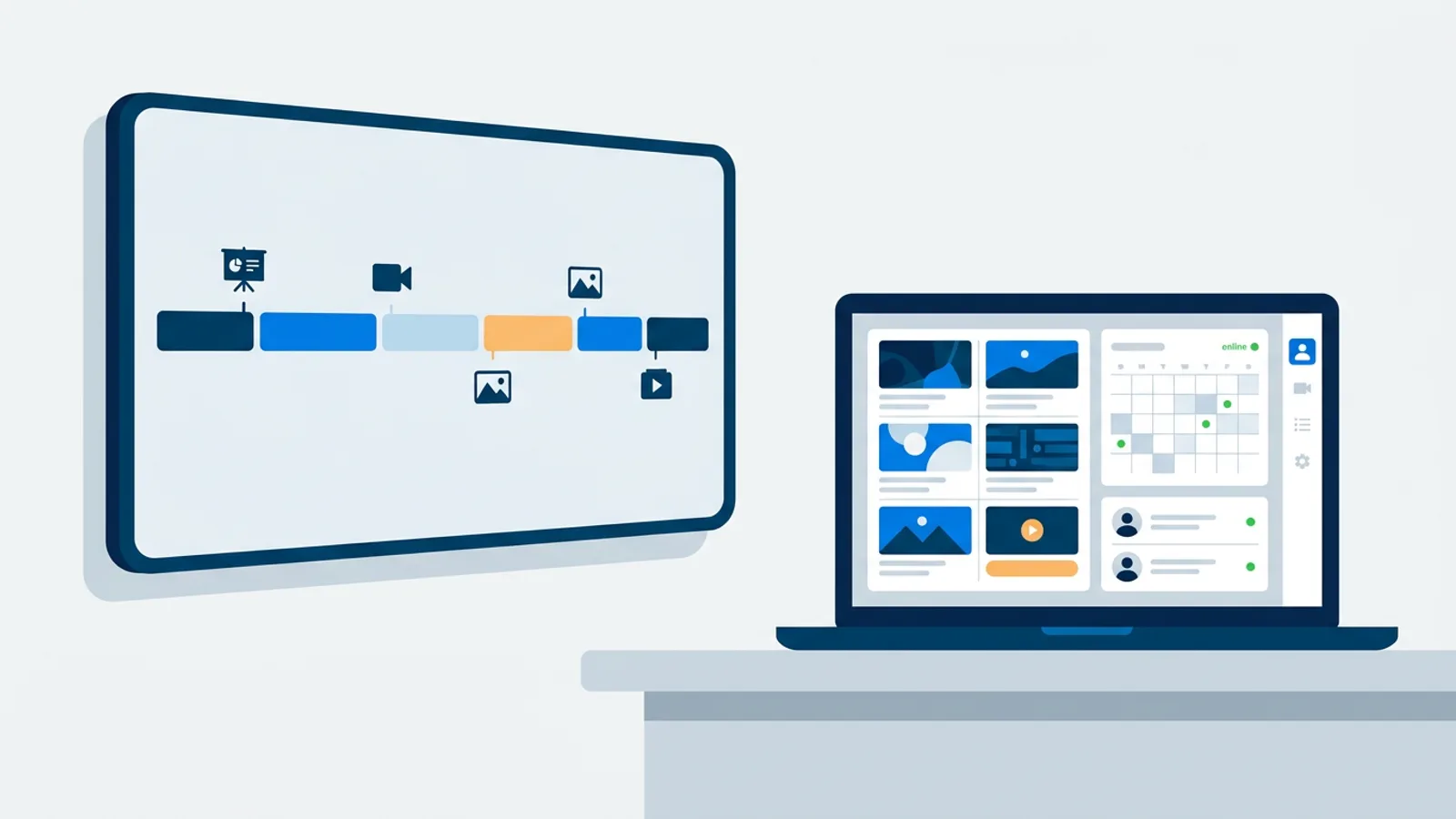
A digital signage CMS is the web dashboard where you upload content, build it into playlists, decide when each playlist plays and on which screens, and check whether those screens are actually online. That's the whole job in one sentence, and it's worth repeating because it's the definition most people can actually remember: upload, arrange, schedule, check. If you've already got a TV or player running and just want to get a webpage or app onto it, the browser and smart TV guide covers that step; this article is about the software that manages what shows up once a screen is connected.
The word "CMS" gets borrowed from websites, so people sometimes assume a digital signage content management system works the same way WordPress does. It doesn't, quite, and the differences explain why signage software has scheduling and screen status pages that a blog editor never needs.
What a digital signage CMS does
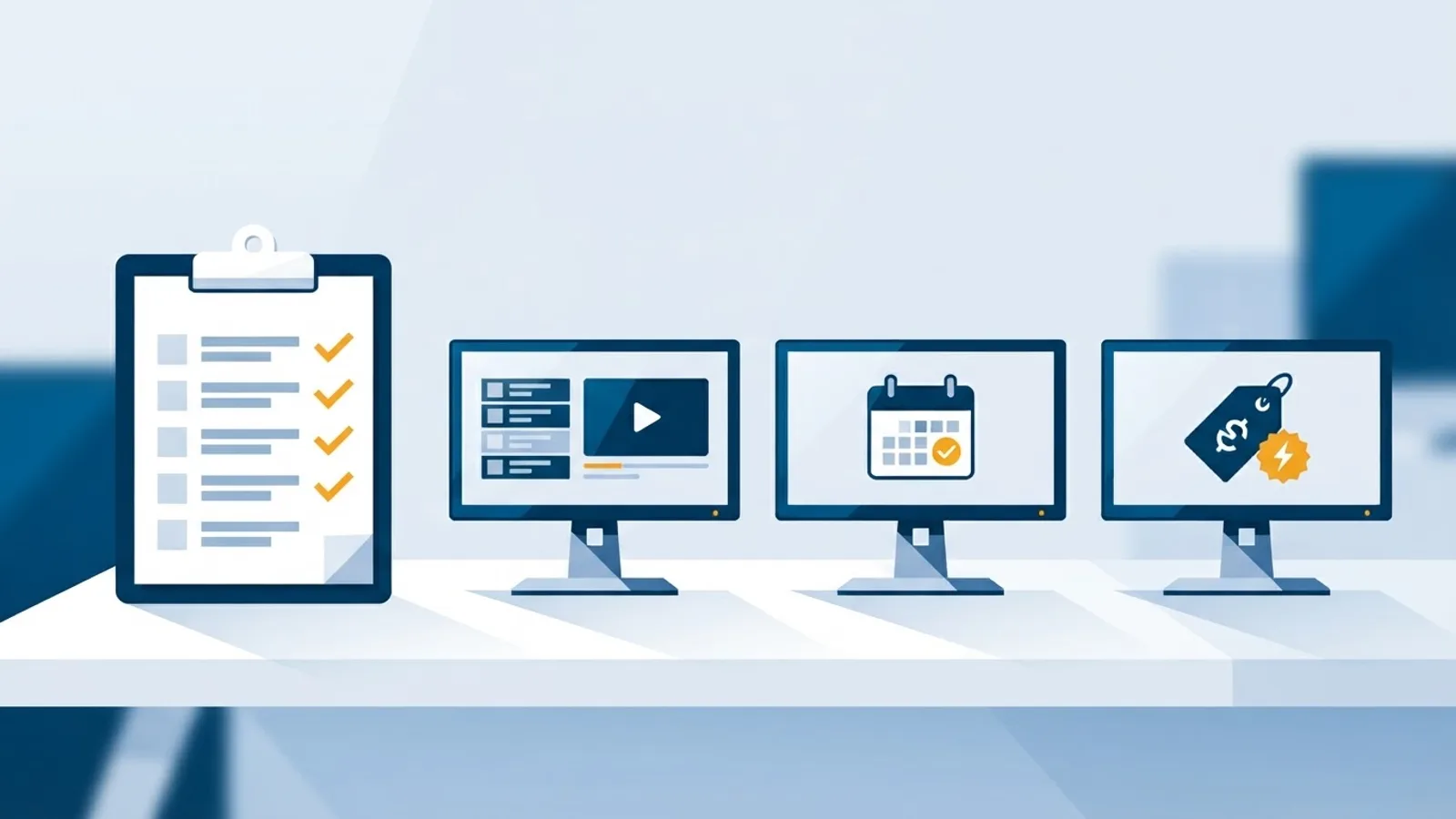
Strip away the marketing language and a digital signage CMS has five jobs. Miss one of them and you're not really running signage software, you're running a slideshow app with extra steps.
Content library
You upload images, videos, PDFs, or point the system at a live web page, and the files sit in one place instead of scattered across USB sticks or a player's local folder. In TVpilot this content lives in your account's storage allowance (250 MB on the Free plan, up to 10 GB on Pro) and can be reused across as many playlists and screens as you like. PDFs are split into one slide per page automatically, and media can be imported straight from Google Drive or Dropbox instead of uploaded file by file.
Playlists
A playlist is an ordered list of items with a duration and transition for each one. Drag a menu photo above a promo video, set the photo for eight seconds, done. TVpilot playlists mix images, videos, web pages and PDFs in any order, which matters if your content isn't all one format, say a coffee shop mixing a PDF menu with a short video loop and a live weather widget from the integrations catalog.
Scheduling
This is the part that separates signage software from a slideshow app. You tell the CMS which playlist runs on which day and during which hours: lunch specials from 11am to 2pm, happy hour after 5pm, a closed sign overnight, all on the same screen without anyone touching it. TVpilot handles this two ways: per-slide dayparting for individual items inside a playlist, and a calendar Schedule page for planning which whole playlist runs on a screen, including one-off event days and weekly repeating slots months in advance.
Screen management
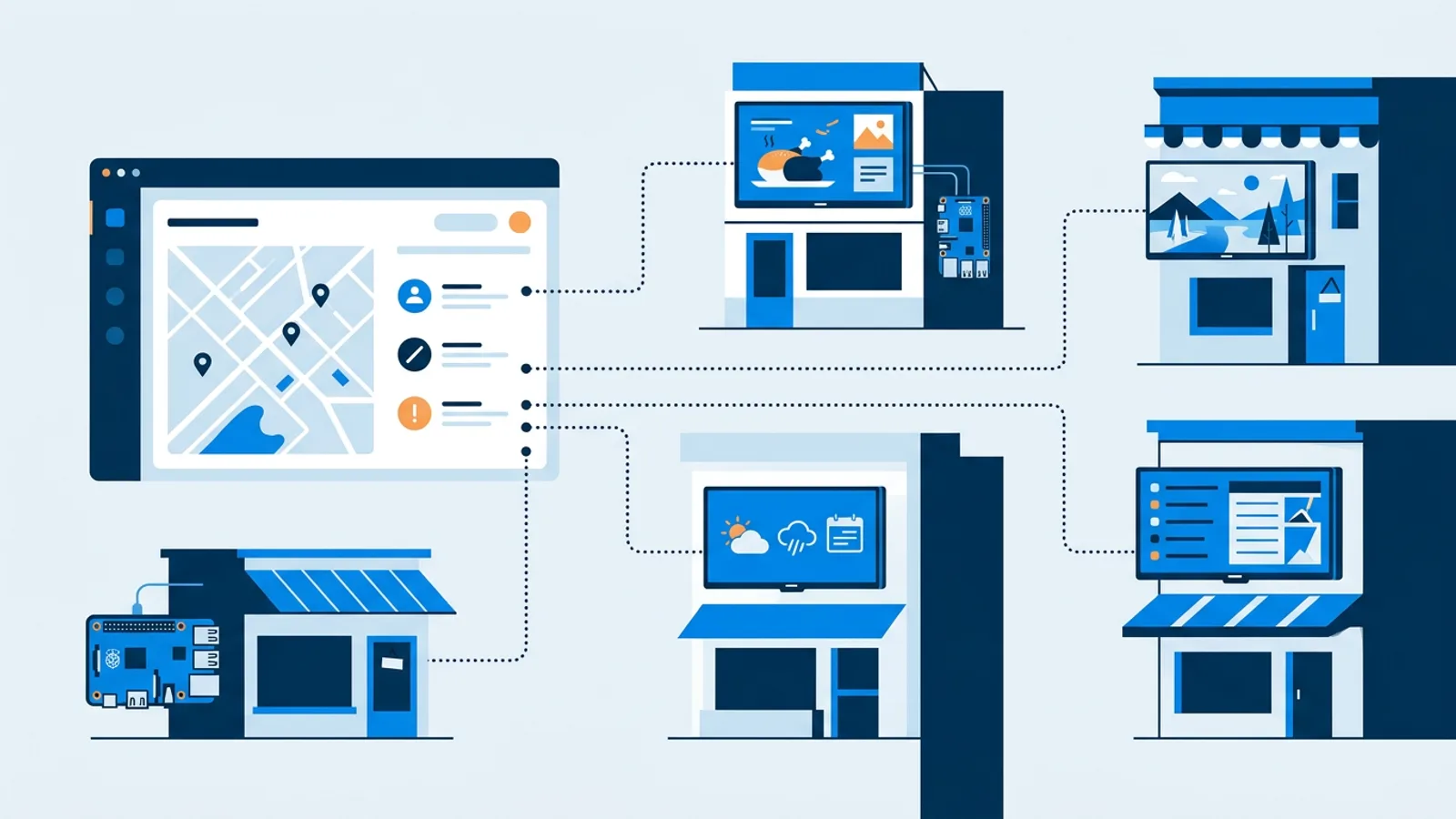
Each screen is a distinct thing the CMS keeps track of by name, location and assigned content, not just a browser tab playing whatever it was last pointed at. You assign playlists per screen or per group, push an update, reboot a stuck player, or send an urgent announcement to every screen at once with something like TVpilot's "show now" push, all from the dashboard instead of walking over with a keyboard.
Monitoring
Once content is live, the CMS becomes a status board. Is the screen online right now? When did it last check in? Did an update actually reach it? TVpilot shows online/offline status and heartbeats for every registered screen, plus Wi-Fi signal and TV power state, so a blank TV in a back office doesn't go unnoticed for a week. The screen monitoring guide covers this piece in more depth if fleet uptime is your main worry.
USB stick vs media player vs a digital signage CMS
A lot of small setups start with a USB stick or a media player with folders, and both work fine for a single screen showing the same loop forever. The gap shows up the moment you want to change something remotely, add a second screen, or find out why a TV went dark.
| USB stick | Media player with folders | Digital signage CMS | |
|---|---|---|---|
| Updating content | Walk over, pull the drive, re-copy files | Walk over or remote into the box, edit folders by hand | Log in from anywhere, changes push out automatically |
| Several screens | Duplicate the drive per screen, no guarantee they stay in sync | Repeat the folder setup on every player, manually | One dashboard, and each screen can show something different |
| Scheduling | None, the file loops until someone swaps it | None, unless the player has its own basic timer | Day and time scheduling built in, changes itself |
| Knowing a screen is down | No idea until someone notices the blank TV | No idea unless you're standing in front of it | Online/offline status and heartbeats show it right away |
A digital signage CMS vs a website CMS
A direct comparison helps, since the borrowed word causes most of the confusion.
| Website CMS (e.g. WordPress) | Digital signage CMS | |
|---|---|---|
| Output | A page rendered in any visitor's browser | A specific screen or set of screens you control |
| Audience | Anonymous, self-selected visitors | A fixed physical location, known in advance |
| Core unit | Pages and posts | Playlists and schedules |
| Key question it answers | What does this page say? | What plays, where, and when? |
| Uptime concern | Server availability | Whether each individual screen is online and current |
A website CMS assumes one page for whoever visits it whenever they show up. A signage CMS assumes many separate screens, each possibly showing something different depending on the day, the time, or the branch, and it has to track hardware it doesn't fully control. That's why scheduling and screen monitoring exist here and don't really have an equivalent in WordPress.
The dashboard is not the player
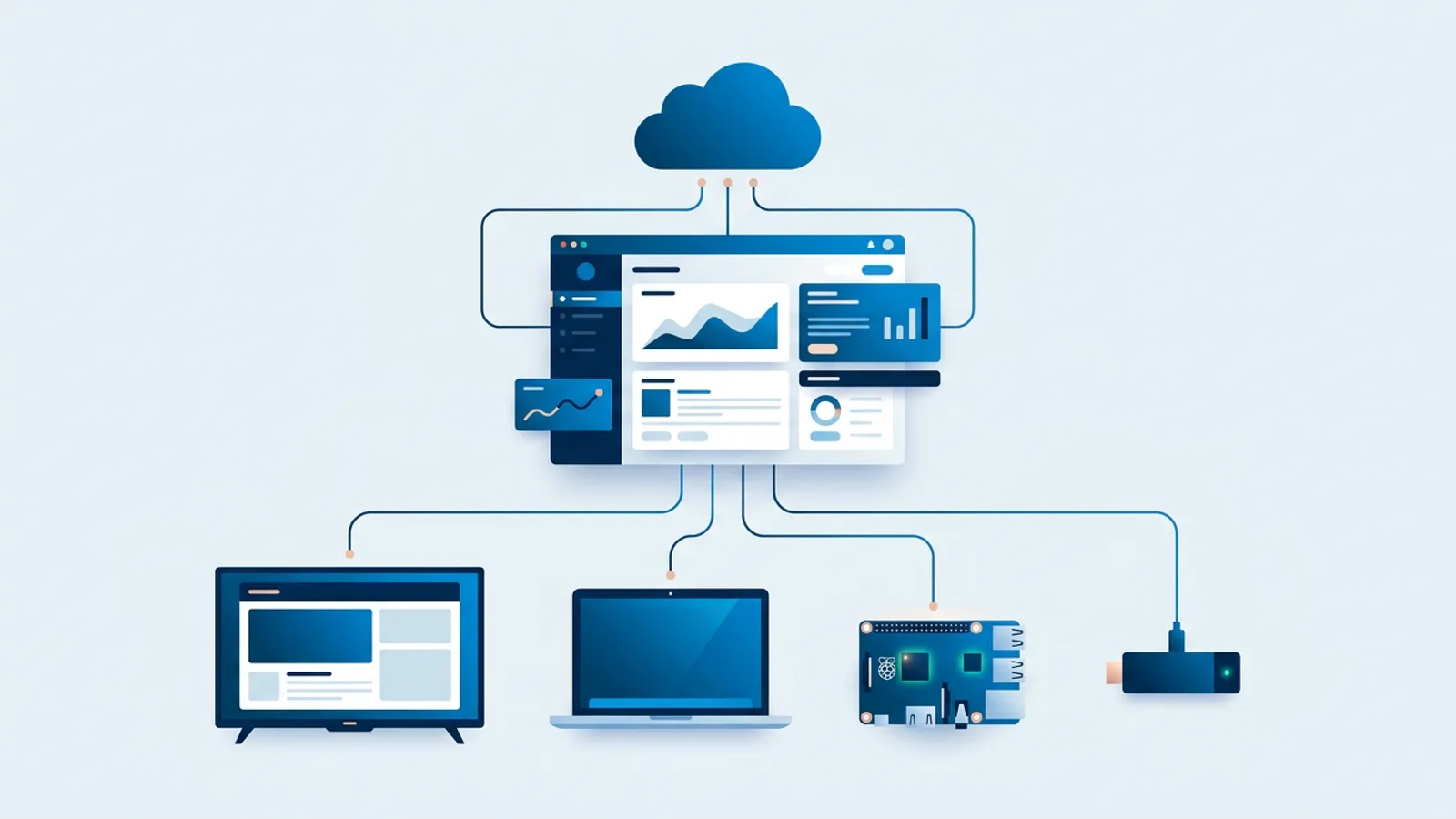
It helps to keep the CMS and the player software mentally separate, even though most people running TVpilot never think about the split. The CMS is the dashboard where decisions get made: what plays, when, on which screen. The player is the piece of software actually running on the TV, Pi, or browser tab that receives those decisions and displays them. For how content actually gets from the dashboard onto a screen, and what a screen does when the internet drops, the cloud signage explainer and the screen monitoring guide go further than this article does.
Digital signage CMS features worth expecting
Not every signage CMS looks the same, but a few features show up consistently enough that their absence is a warning sign:
- Playlist building with more than one media type, images and video at minimum, ideally PDFs and web pages too
- Time and day-of-week scheduling, not just a fixed loop
- Per-screen or per-group targeting, so a chain with five locations isn't stuck showing identical content everywhere
- Online/offline status for every screen, checked automatically
- Remote update and reboot, so a hardware issue doesn't require an on-site visit
- Some way to design content without hiring a designer
That last one is where a lot of small teams get stuck. Not everyone running a signage screen has design software or the time to learn it. TVpilot's answer is AI Studio: describe the screen you want in a short brief, a lunch special, a set of opening hours, a welcome message, and it generates a designed screen from that description, no template hunting or layout skills required. Beyond static files and AI-generated slides, TVpilot also plugs into live feeds and widgets, weather, reviews, calendars, ecommerce dashboards and more, all listed on the integrations page, if you want screens that update themselves without you touching the playlist.
A concrete walkthrough
Say you run a small clinic with one waiting-room TV. Here's what actually happens between deciding you want a new screen and it appearing:
- Upload a PDF of your services list and a short video loop about a new treatment.
- Build a playlist: PDF for 15 seconds, video for 20 seconds, repeat.
- Set a schedule so this playlist runs Monday to Friday, 8am to 6pm, and a different "closed" screen runs outside those hours.
- Assign the playlist to the waiting-room screen, registered earlier with a claim code generated in the dashboard and entered on the Pi during setup.
- The Pi checks in with the dashboard, pulls the new playlist and schedule, and starts playing it, no file transfer, no USB stick, no reflashing anything.
- Later that week you glance at the dashboard, see the screen's last heartbeat was two minutes ago, and move on with your day.
That loop, upload, arrange, schedule, confirm it's live, is the entire job of a digital signage CMS.
Where TVpilot fits, and where it doesn't
TVpilot is hosted software, used through a browser at tvpilot.app, with nothing to install on a server. That's a deliberate tradeoff: it isn't open source and it isn't something you self-host, so if your priority is full control over your own server or avoiding a subscription entirely, an open-source signage project might suit you better. The self-hosting checklist is worth reading before deciding either way, since self-hosting isn't free once you count your own time maintaining it.
Hardware support is also worth being clear-eyed about. Raspberry Pi is the best-supported route, with a one-command installer, kiosk mode, and HDMI-CEC TV power scheduling built in. Android TV and Fire TV Stick work too, but through the browser (Silk, TV Bro or Fully Kiosk Browser pointed at your player URL) rather than a dedicated app, so setup looks a little more manual than a one-tap app store install. And there's no free trial in the usual sense: the Free plan, one screen, 250 MB storage, AI Studio included, is free permanently within those limits, not a countdown to a paywall.
If you want a dashboard-driven way to manage a handful of screens without touching a server, TVpilot fits well. If you need dozens of screens across multiple sites with heavier storage needs, the Pro or Business plans scale up. If self-hosting or a native TV app is a hard requirement, it's fair to look elsewhere.
Start on the Free plan at /signup, connect one screen, and build your first playlist and schedule before deciding whether it's worth paying for more.
Frequently asked questions
What is a digital signage CMS?
A digital signage CMS is the web dashboard used to upload content, arrange it into playlists, schedule when and where each playlist plays, and check whether the screens showing it are online. It's the control layer; the actual TV or player just displays whatever the CMS tells it to.
Do I need a CMS for one screen?
For a single screen showing a static loop forever, a USB stick or a basic media player can work fine. A CMS starts paying off the moment you want to change content remotely, run different content at different times of day, or know immediately if the screen goes offline. TVpilot's Free plan supports one screen at no cost, so trying a CMS for a single screen costs nothing to test.
Is a digital signage CMS the same as a website CMS?
No, even though both borrow the word CMS. A website CMS like WordPress manages pages for anonymous visitors who arrive whenever they choose. A digital signage CMS manages content for a fixed set of physical screens you control, with scheduling by day and time and monitoring of whether each screen is actually online, neither of which has a real equivalent in website software.
How does a digital signage CMS work day to day?
Most of the work happens before anything changes on screen: you upload content, arrange it into a playlist, attach a schedule, and assign it to a screen or group of screens. After that the screen checks in with the CMS, downloads whatever plan applies, and plays it. Ongoing work is mostly glancing at the dashboard to confirm screens are online and swapping content when it's time for something new.