Digital Signage Content Ideas That Actually Work
Staring at a blank playlist is the hardest part of running a screen. The hardware is set up, the software is running, and now you need something to actually put on it, day after day, without it turning into a slideshow nobody looks at twice. This guide is a working list of digital signage content ideas organized by business type, plus how to sequence them into a playlist that holds attention instead of fading into the wallpaper.
Most of these ideas work on any player, but if you haven't picked hardware yet, a Raspberry Pi is a solid default: cheap, reliable, and set up in one command on our Raspberry Pi signage guide. Everything below assumes you already have a screen running or are close to it.
Start with the job the screen is doing
Before picking content, decide what the screen is for. A reception screen and a menu board have almost nothing in common in terms of pacing or content type, even though both run on the same kind of software. Ask three questions:
- Who is looking at this screen, and for how long (a customer waiting 2 minutes, or an employee walking past 20 times a day)?
- Is it meant to inform, sell, or just fill dead air pleasantly?
- Does it need to change daily, or can it run mostly unattended for weeks?
The answers narrow the list fast. A waiting room needs longer, calmer content. A menu board needs to be scannable in three seconds. A retail window needs to stop foot traffic from six feet away.
Content ideas by location
Retail and storefronts
- Current promotions and price drops, one offer per slide, large price, no paragraph of copy
- New arrivals or restocks, shown as a short rotating gallery
- Store hours and holiday closures, especially useful on the window-facing screen after closing
- QR code linking to online store or loyalty signup
- Instagram or user photos if you already have a content pipeline for them (a static folder of curated images works fine without a live social feed)
Restaurants, cafés and bars
- The menu board itself, ideally split into a fixed frame (logo, prices) and a rotating frame (daily specials, drink of the week)
- Allergen or dietary icons if your menu needs them
- Happy hour countdown or time-based specials, using scheduling so the slide only appears during that window
- Behind-the-scenes shots: the kitchen, ingredients, the coffee roast
- Local weather, genuinely useful for a patio or terrace decision
Our menu board design guide goes deeper on layout if the board itself is the whole point of the screen.
Offices and lobbies
- Welcome message with today's date and visitor instructions
- Meeting room status or a simple room-booking summary if you already track it elsewhere
- Company announcements, KPIs for the week, or a "wins" slide for morale
- New hire introductions, one slide per person for their first week
- Weather and local transit delays, small but genuinely used
We wrote a full breakdown of this use case in the lobby and reception welcome screen guide.
Waiting rooms (clinics, salons, auto shops)
- Estimated wait time or queue position, if your booking system exposes it
- Service menu and pricing
- Health tips or general information, kept short and non-alarming
- Local news or weather, low-stakes filler that people genuinely watch
- Before/after photos for salons, portfolio pieces for barbers
Real estate and property offices
- Current listings with price, address, and a hero photo, rotating automatically as listings change
- Sold/under-offer banners
- Agent introductions and contact details
- Open house schedule for the week
If you're managing listings, a feed that updates itself beats manually rebuilding slides every time a property closes. TVpilot's real-estate widget syncs an XML listings feed automatically, so the screen stays current without anyone touching the playlist.
Gyms, studios and community spaces
- Class schedule for the day, updated automatically per weekday using scheduling
- Instructor spotlight or member of the month
- Safety reminders or equipment usage tips
- Upcoming events and workshops
What to show on digital signage when you have no content team
Most small businesses don't have a marketing department feeding the screen daily, and that's fine. A screen with five solid, rarely-changing slides beats one with fifty stale ones. A workable minimum playlist:
- A welcome or branding slide (10 seconds)
- Hours, contact, and location info (10 seconds)
- Current promotion or menu highlight (15 seconds)
- Weather widget (8 seconds)
- A photo or video loop of the space, product, or team (15 seconds)
That's under a minute, loops cleanly, and needs updating maybe once a month. If you want the promo slide to look designed rather than thrown together, AI Studio in TVpilot generates a finished screen (promo, menu, or welcome layout) from a short text brief, which is a faster starting point than fighting with a template in a graphics editor. Our AI signage generator post shows the workflow.
Building a signage playlist that doesn't feel repetitive
A few playlist habits separate signage that gets watched from signage that becomes furniture:
- Vary slide length by content weight. A single price slide can hold for 6 to 8 seconds; a multi-item menu might need 15.
- Group by mood. Don't jam a somber safety notice between two upbeat promo slides. Cluster similar content and let the whole playlist have a rhythm.
- Use scheduling instead of manual swaps. If lunch specials only apply from 11 to 2, set that time slot once and stop remembering to change it. TVpilot supports per time-slot and per-day scheduling, so a lunch menu, happy hour, and closing-time hours slide can all live in the same playlist and only appear when relevant.
- Refresh the "boring" slides most. Hours and promos get stale fast. Welcome messages and ambient video age slowly. Prioritize your refresh effort accordingly.
- Keep total loop length reasonable. For a fast-glance environment (retail window, queue line) aim for 60 to 90 seconds total. For a longer-dwell environment (waiting room, office lobby) 3 to 5 minutes avoids obvious repetition without asking too much of anyone's attention.
For general layout and legibility rules that apply to every slide type above, see our design best practices and the font size guide, since content ideas fail fast if nobody can read them from across the room.
Mixing content types on one screen
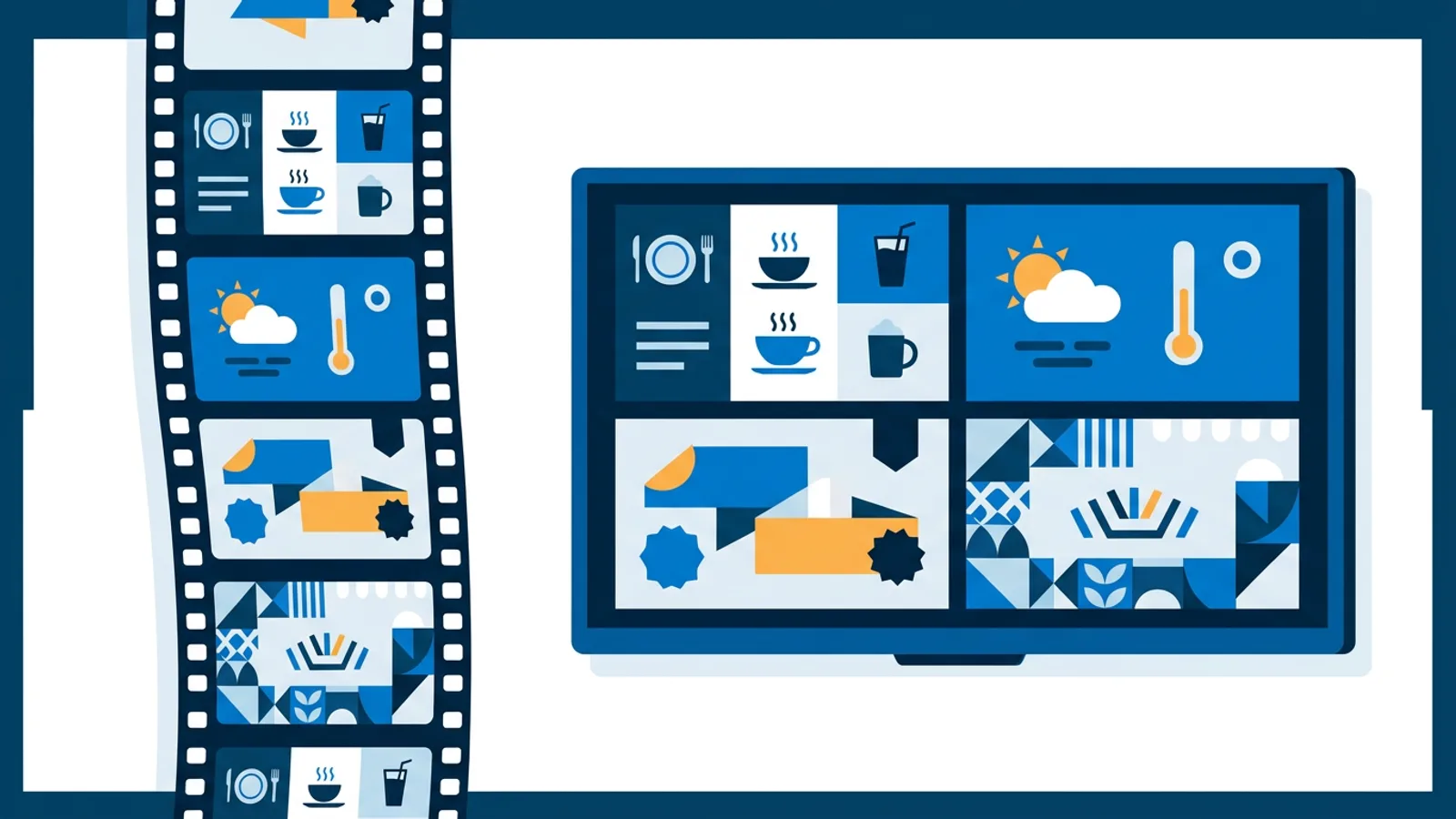
A playlist doesn't have to be all one format. TVpilot playlists mix images, videos, web pages and PDFs in any order with drag-and-drop reordering and transitions between slides, so a rotation can include a live weather widget next to a static promo image next to an embedded web page (a booking calendar, a live dashboard) without needing separate hardware or software for each.
If part of your content is a website you already maintain, such as a booking page or a live dashboard, it's worth knowing that a signage player can also just show that page full-screen and refresh it automatically; our website-on-a-TV guide covers that specific case.
When TVpilot is (and isn't) the right fit
TVpilot fits well if you want a browser-based or Raspberry Pi player you manage from one dashboard, need scheduling and multiple screens without babysitting each one, and would rather generate a decent-looking promo slide from a text brief than open a design tool. The Free plan (1 screen, 250 MB storage, 5 AI Studio credits a month) is enough to test most of the ideas above before paying anything.
It's not the right fit if you need a fully self-hosted, source-available system you control end to end. TVpilot is hosted software, not open source. It's also not built for offline-first environments; the player needs an internet connection to pick up content changes, though a Raspberry Pi player will recover automatically once connectivity returns. And if your plan is specifically a native Android TV or Fire TV app rather than a browser-based player, that's not available yet on those platforms.
Getting started
Content ideas are only useful once they're actually on a screen. Pick three or four items from the lists above that match your space, build a short playlist, and let scheduling handle the parts that change by time or day rather than doing it by hand. The Free plan covers one screen with no card required, which is enough room to try a real playlist before deciding whether to add more screens.
Frequently asked questions
What should I actually show on a digital signage screen if I don't have a marketing team?
A short, rarely-changing playlist works best: a welcome or branding slide, hours and contact info, one current promotion, a weather widget, and a photo or video loop of your space. Five slides under a minute, updated monthly, beats a long playlist nobody keeps current.
How long should a digital signage playlist be?
For fast-glance spots like a retail window or checkout queue, aim for 60 to 90 seconds total loop time. For longer-dwell spots like a waiting room or office lobby, 3 to 5 minutes avoids obvious repeats without overloading the content.
How often should signage content be updated?
It depends on the slide. Promotions, specials, and hours-of-operation slides go stale fast and need frequent updates. Welcome messages, ambient video, and general branding slides can run for weeks or months unchanged. Scheduling recurring items like lunch specials or happy hour by time slot removes most of the manual updating.
Can one screen mix different types of content, like a menu and a weather widget?
Yes. A single playlist can combine images, videos, web pages, PDFs, and widgets like weather in any order, with transitions between them. TVpilot supports this natively, so a menu slide, a weather widget, and a promo image can rotate on the same screen without separate software for each.