How to Plan a Digital Signage Project (Checklist)
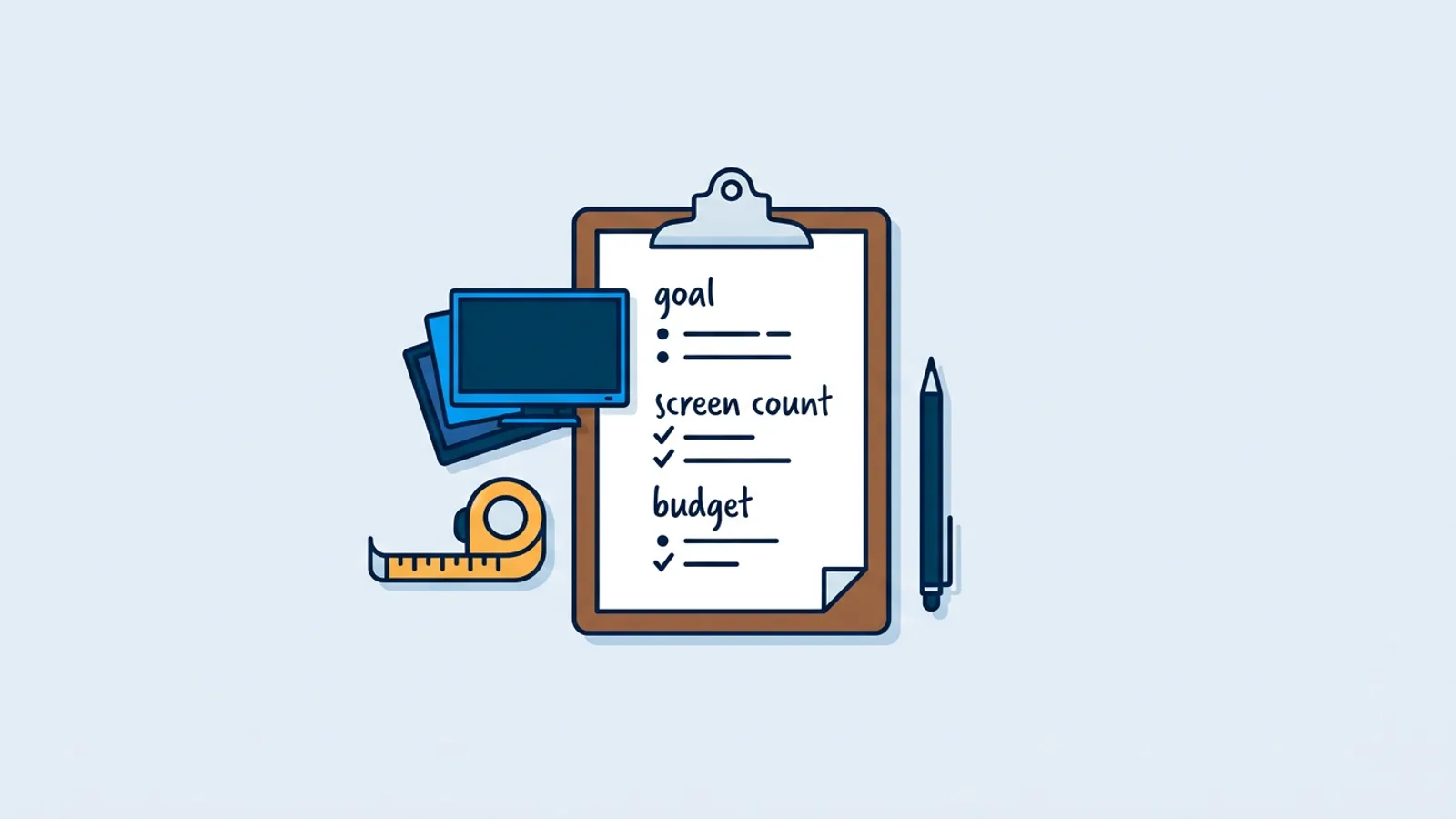
Most digital signage projects fail before anyone plugs in a TV. Someone buys a screen, picks whatever app shows up first in a search, uploads a flyer, and six months later nobody remembers to update it. Learning how to plan a digital signage project properly means making a handful of decisions before you touch any hardware or software at all: what the screen is actually for, how many you need, how much content it will take to keep it fresh, and what you can realistically spend.
This guide walks through that planning phase in order. Hardware and software choice comes last, not first, because the right box or app depends entirely on the answers you give in the first four steps. If you already know you want the simplest possible setup, a browser running on the smart TV you already own is a legitimate starting point for a lot of use cases, and we cover when that's true.
Step 1: How to Plan a Digital Signage Project Starts With the Goal
Before anything else, write down what the screen is supposed to do. This sounds obvious and gets skipped constantly. Digital signage is not one product category, it covers four or five different jobs wearing the same TV:
- Promo or marketing: rotating offers, new arrivals, seasonal campaigns, social proof like reviews.
- Menu or price board: a coffee shop or salon that changes prices or items by daypart.
- Wayfinding: directions, room status, queue numbers in a lobby or clinic.
- Dashboard: sales numbers, KPIs, order queues for staff, not customers.
Each goal has a different update rhythm and a different audience. A promo screen can survive weeks without a change. A dashboard is useless if it's not near real-time. A menu board that changes for lunch and dinner needs scheduling built in, not someone manually swapping a playlist twice a day. Pin down the goal first, everything downstream (screen count, content volume, software features you actually need) falls out of it.
Step 2: Count your screens and locations
Next, count. Not just how many TVs, but where they are and who manages them. One screen behind a single reception desk is a completely different project from six screens across three branches with different opening hours and different staff.
Write down, for each screen:
- Physical location and who can reach it if something goes wrong
- Whether it needs its own content or should mirror another screen
- Network access at that spot (guest Wi-Fi, wired, or none)
- Who's responsible for keeping its content current
If you're not sure whether one screen is enough to start or you should plan for a fleet from day one, our single screen vs multiple screens guide walks through that decision in more detail. For anything spanning more than one physical address, also skim the multi-location setup guide before you commit to a structure, because retrofitting per-location permissions later is more work than planning them in from the start.
Step 3: Size your content and update frequency
This is the step people skip most often, and it's the one that determines whether the project survives past month two. Ask honestly: how often will someone actually update this screen, and who is that someone?
A screen that needs new content daily (a lunch special, a live sales dashboard) needs either automation (a widget that pulls live data, a scheduled playlist swap) or a named person with five minutes a day set aside for it. A screen that changes monthly (a wayfinding map, a static promo) can be simpler. Content plans that assume someone will just remember to update a screen every week tend to drift into stale, embarrassing displays within a quarter.
Figure out roughly how many slides or pages the screen needs, how long each stays up, and whether any of it should change automatically by time of day or day of week. If you want inspiration for what actually works on a screen rather than a generic content list, see our digital signage content ideas post, and if dayparting (different content at different hours) is part of your plan, read up on signage scheduling before you commit to a tool that can't do it.
Step 4: Set a realistic budget
Budget for digital signage has three separate buckets, and treating them as one number is a common planning mistake.
| Cost bucket | What's in it | Recurring? |
|---|---|---|
| Hardware | TV or display, mounting, a media player or stick if you're not using the TV's own browser | One-time (plus occasional replacement) |
| Software | The CMS/dashboard that manages content and schedules | Usually monthly, per screen |
| Content | Design time, photos, video, or a subscription to a design tool | Ongoing, but small once you have a system |
Software pricing in this category is usually per-screen and tiered by screen count and storage, so it's worth knowing roughly how many screens you'll run before comparing plans, that's a big part of why steps 1 and 2 come first. Our software pricing breakdown has more detail on how vendors typically structure this if you want a wider view before comparing options.
Don't forget the labor cost of step 3. A screen that needs daily hand-editing has an ongoing time cost even if the software itself is free.
Step 5: Only now, pick your hardware
With a goal, a screen count, a content plan, and a budget in hand, hardware becomes a much shorter decision. Three realistic paths for most small businesses:
Browser on the TV you already own
Most modern smart TVs, plus Fire TV Sticks and Android TV / Google TV devices, have a browser built in. Point it at a player URL and it plays your content, no extra box, no extra cable. This is the cheapest and fastest route if you already have a screen and don't need offline resilience or heavy video playback. Our browser-based smart TV guide covers what this setup can and can't do.
Raspberry Pi
More setup work up front, but you get a dedicated, purpose-built player: kiosk mode, auto-restart if something crashes, and (on compatible TVs) HDMI-CEC power scheduling so the TV switches itself on and off without a smart plug. Worth it once you have more than a couple of screens or need reliability a browser tab can't quite guarantee. See the Raspberry Pi signage page and the browser vs Raspberry Pi comparison if you're torn between the two.
Fire TV Stick
A cheap, widely available streaming stick that a lot of businesses already own for casting apps or streaming video, so it's tempting to reuse one for signage instead of buying dedicated hardware. TVpilot doesn't have a dedicated Fire TV app yet, so it runs through the stick's built-in Silk browser instead, the same approach as the smart TV route above. Details on that device are in our Fire TV Stick signage guide.
There's no universally best option here. A single-screen coffee shop menu board and a 15-screen retail rollout have different right answers, and picking the box before answering steps 1 through 4 is exactly how projects end up with hardware that doesn't fit the job.
A copy-paste planning checklist
Before you buy anything, fill this in:
- Goal: promo / menu / wayfinding / dashboard / other: ___
- Primary audience: customers / staff / visitors
- Screen count today: ___ Expected in 12 months: ___
- Locations: ___ (list each with network availability)
- Update frequency: daily / weekly / monthly / rarely
- Who owns content updates: ___
- Automated data needed: sales dashboard / reviews / weather / calendar / none
- Monthly software budget: €___ One-time hardware budget: €___
- Screen already owned: yes / no, needs purchase
- Network at each location: wired / Wi-Fi / guest Wi-Fi (check captive portal issues if it's guest Wi-Fi)
- Chosen hardware route: browser / Raspberry Pi / stick
Fill in every line before comparing software. It takes twenty minutes and it will save you from buying the wrong plan or the wrong box.
Common mistakes at this stage
Watch for these mistakes early on: buying screens before deciding what plays on them, assuming one screen's content works unchanged for a second location, underestimating how often content actually needs updating, and picking a vendor by screen price alone without checking storage limits or per-screen caps. A longer rundown of these is in our common digital signage mistakes post, worth a read once your checklist above is filled in.
How TVpilot fits into the plan above
Once your plan is on paper, TVpilot is one way to execute it: a hosted dashboard where you build playlists, schedule content by day or time, and monitor whether screens are actually online, without installing anything on a server yourself. It runs on Raspberry Pi with a one-command installer, or on any device with a browser, including smart TVs, Fire TV Stick, and Chromecast with Google TV.
Plans scale with the screen counts you worked out in step 2: Free covers 1 screen and 250 MB of storage forever, no credit card and no time limit, just capped features. Starter is €5/month for up to 5 screens and 1 GB storage. Pro is €19/month for up to 25 screens, 10 GB, and priority support. Business is custom for 25+ screens. There's no free trial on the paid tiers, but the Free plan lets you build a real single-screen project with no expiry before deciding whether to pay for more.
This setup isn't a fit if your plan requires self-hosting on your own server (TVpilot is SaaS only, see our self-hosted signage checklist if that's a hard requirement), or if you need a dedicated app on Fire TV or Android TV today rather than the browser route. If your plan is closer to a handful of screens, one dashboard, scheduling and monitoring built in, it's worth a look.
A screen doesn't need to look finished before it goes live. Sign up for the free plan, build your first playlist against the goal you defined in step 1, and see how it holds up on a real screen before you spend on anything else.
Frequently asked questions
What's the first thing to decide before buying digital signage hardware?
The goal of the screen. Promo content, a menu board, wayfinding, or an internal dashboard all need different update frequencies, audiences, and features, and that decision determines how many screens you need, how much content you'll produce, and which hardware fits. Buying a TV or stick before deciding this is the most common planning mistake.
How many screens should a first digital signage project have?
Start with the number that matches your actual physical layout, not a guess at future growth. One screen at a single desk is a very different project from several screens across multiple branches with separate content needs. If you're unsure, a single-screen pilot on a free tier is a low-risk way to test the plan before committing to a fleet.
How much does a digital signage project typically cost to plan for?
Budget for three separate buckets: hardware (TV, mount, and a player or stick if you're not using the TV's built-in browser), software (usually a monthly per-screen fee), and content (design time or a subscription tool). Also account for the ongoing labor cost of whoever updates the content, since a screen that needs daily hand-editing has a real time cost even on free software.
Should I choose a browser-only setup, a Raspberry Pi, or a Fire TV Stick?
That choice comes last, after you know your goal, screen count, content plan, and budget. A browser on a smart TV or streaming stick is the cheapest, fastest route for simple setups. A Raspberry Pi adds kiosk mode, auto-restart, and HDMI-CEC power scheduling, useful once you have several screens or need higher reliability. A Fire TV Stick works through its built-in Silk browser rather than a dedicated app.